
Enabling Single Sign-On (SSO) in your organization centralizes authentication, but some of your licensed users may also need to log in using their email address and password. This guide walks through the steps required to enable this option in the admin console. When you’re done, licensed users will see both SSO and email/password login options on the sign‑in page.
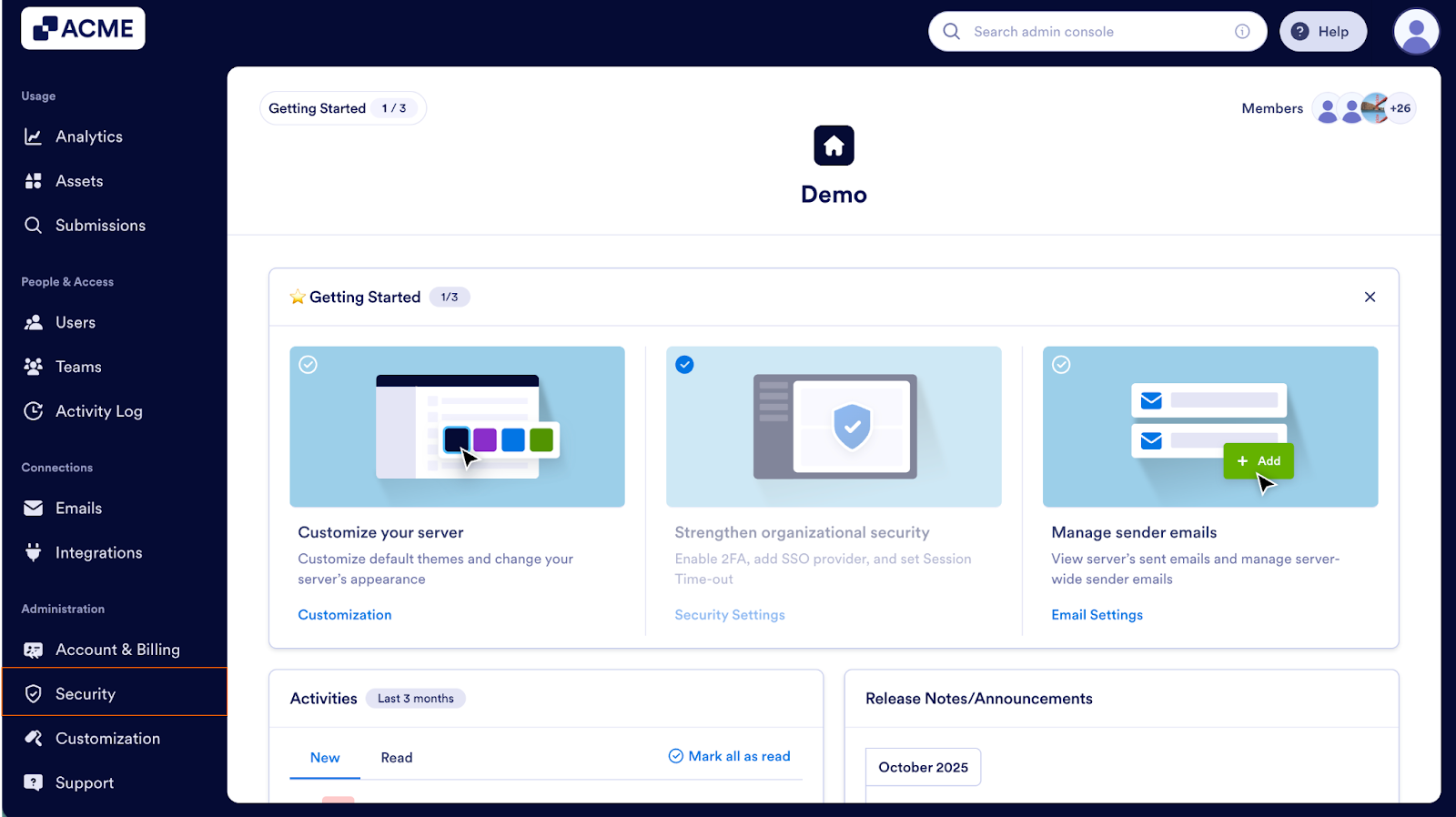
- First, in the Admin Console, in the sidebar on the left side of the screen, click on Security.
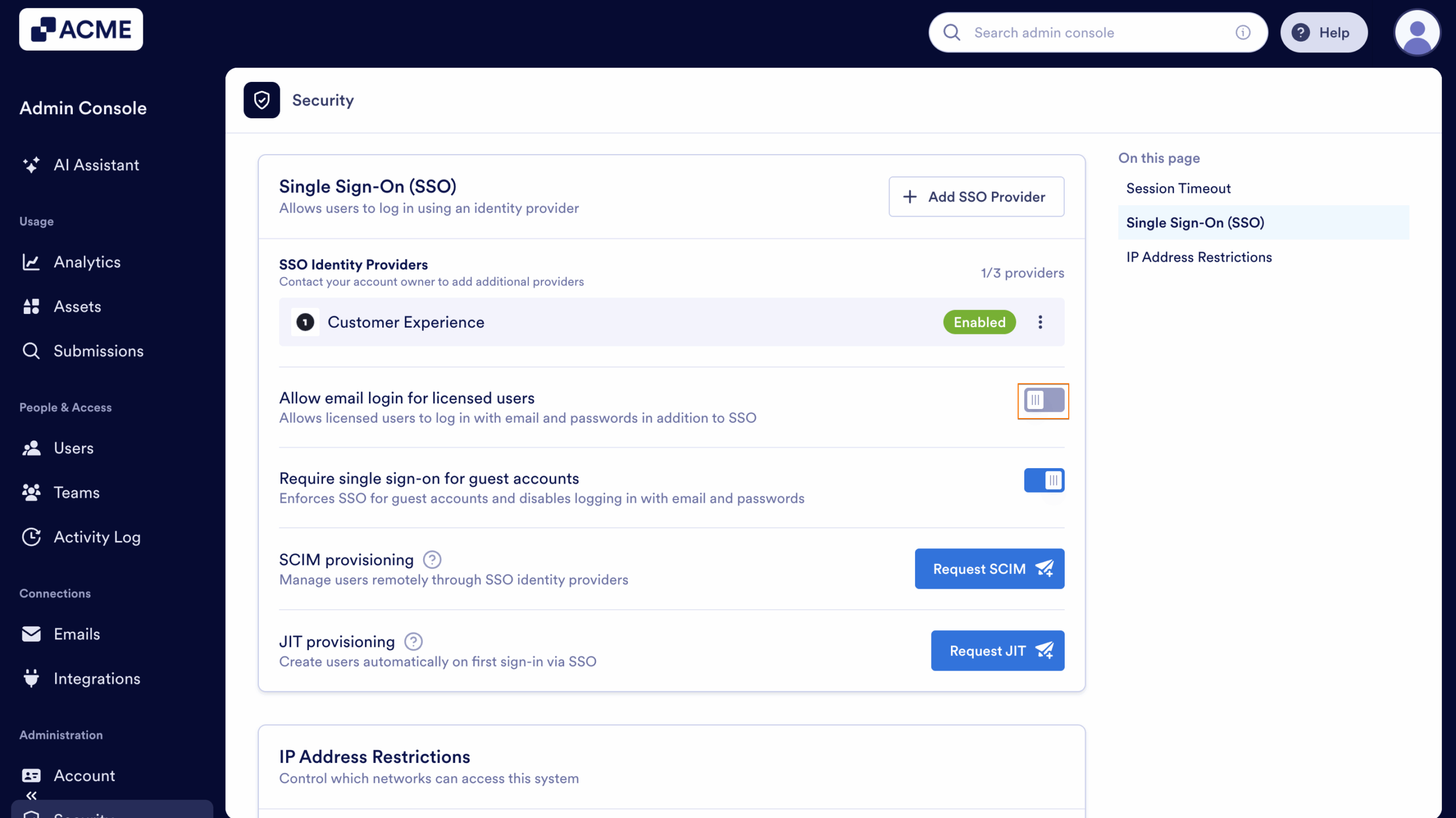
- Then, scroll down to Single Sign‑On (SSO) and toggle on Allow email login for licensed users.
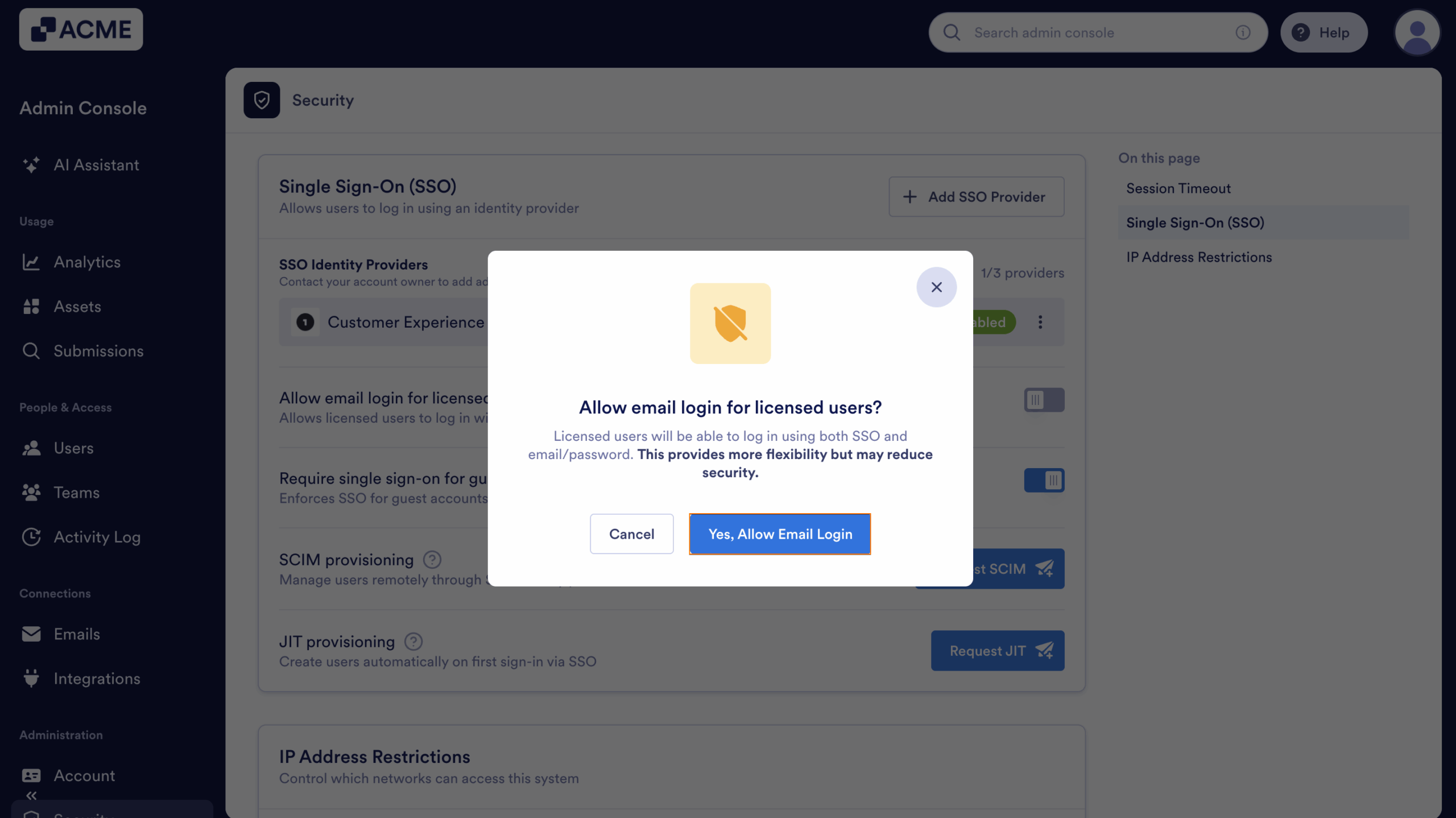
- Finally, click on Yes, Allow Email Login.
After completing these actions, licensed users in your organization will be able to sign in using either SSO or their email and password. This provides your users flexibility while keeping SSO as the default authentication method.
