

Best Claude connectors for education
Overflowing to-do lists are the norm in education. Teachers and school administrators often spend their days racing from task to task. One minute, they’re answering a parent’s email; the next, they’re looking over lesson plans. Disruptive students, course administration, reporting, and figuring out where that extra desk went also take up valuable time.
Anthropic’s Claude can’t do the actual teaching, but it can speed up routine admin tasks. Some educators use it as a standalone chatbot to brainstorm classroom activities or write emails. Claude’s education integrations go one step further by connecting the AI to the tools your school already relies on.
This guide breaks down the best Claude connectors for education, what they do, and how to pick the right one for your institution.
What are Claude connectors for education?
A Claude connector is a plugin or tool that connects the AI with outside apps and databases. This lets Claude retrieve data from these sources and perform certain tasks.
Developers build these connectors with the Model Context Protocol (MCP). It’s an open standard that lets developers connect AI applications to external tools and data sources through MCP servers. With these connections, AI systems can “maintain context as they move between different tools and datasets,” per Anthropic.
MCP tools for educators are more versatile than using standalone Claude. For one, they have direct access to your institution’s data, so you get responses that are actually relevant. For example, a Claude LMS integration lets you ask questions about your students’ assessments. You might ask whether it sees any trends, or you might seek recommendations to improve test scores.
Functionality is another major difference. The Claude chatbot answers questions and generates content, but it doesn’t perform tasks outside the platform. On the other hand, Claude connectors can get things done inside your workflows. That might involve tracking journal articles or gathering data from forms.
You don’t need technical expertise to set up Claude connectors. Most prebuilt tools have step-by-step instructions to link your apps and manage your conversations.
3 best Claude connectors for education in 2026
Using AI for education doesn’t have to be time-consuming or complicated. The best Claude connectors are easy to use and practical for teachers and administrators. Here are our top three picks.
1. Learning Commons Knowledge Graph
As an educator, you already know how hard it is to keep track of academic standards. Learning Commons Knowledge Graph helps you understand these requirements and create more relevant instructional content. For example, if you’re a high school English teacher in Texas, you could prompt Claude to generate assignments that align with standard 110.39. This tool can also adapt activities created by teachers in other states.
- Best for: Teachers who want to create lesson plans and activities that fit their state’s standards and follow current best practices from learning science.
- Developer: Learning Commons
- Limitations
- AI tools don’t always grasp nuance.
- Keep an eye out for content that technically fits standards but isn’t appropriate for your class.
- This connector may limit creativity if it follows standards too strictly.
- Key features
- Draws on K-12 standards from all 50 states
- Generates a variety of standards-aligned content, including exit tickets and project ideas
- Maps content coverage
- Offers targeted recommendations for teaching specific skills
- Tracks students’ learning progression
- Pros
- Adapts activities to meet a specific state’s standards
- Breaks down academic standards into bite-sized components
- Speeds up lesson planning and project design
- Cons
- May lead to repetitive lesson plans if teachers rely on it too much
- Only generates content that fits academic standards, which may not be helpful for extracurricular learning activities
2. PubMed
While many AI tools for teachers target K-12, there are plenty of options for university professors. The PubMed connector links Claude to a database of 36 million biomedical citations and PubMed Central’s full-text archive. This lets scholars search for recent STEM publications more easily. Claude also summarizes papers and answers questions about them. If you’re reading an article about an experimental cancer treatment, you might ask, “What methods did the authors use?” or “What’s novel about this study?”
- Best for: University professors and researchers in the biomedical and life sciences.
- Developer: Anthropic
- Limitations
- While PubMed contains millions of biomedical citations, it’s still only a single database.
- If you don’t consult other sources, you may miss important studies or end up with an incomplete view of the field.
- Key features
- Answers questions based on primary sources in PubMed databases
- Gives access to PubMed’s biomedical citations and PubMed Central’s archives
- Powerful tool for literature searches
- Provides article metadata
- Recommends related articles from the National Center for Biotechnology Information databases
- Summarizes articles
- Pros
- Can find connections to articles in several similar databases
- Helps scholars perform faster, more comprehensive literature reviews
- Makes it easy to search for and summarize papers
- Updates daily with newly published research
- Cons
- Limited to the biomedical and life sciences
- May not always share the most accurate data
- Only provides access to full articles in PubMed Central
- Summaries may be misleading or overly simplify studies
3. bioRxiv
The bioRxiv connector gives Claude access to bioRxiv and medRxiv preprint servers, so you can read papers in the biological and medical sciences before they go through peer review. The connector also tracks publication outcomes for papers that interest you. That helps you figure out if a promising article got published in a peer-reviewed journal later. If it wasn’t, you may want to take a closer look at its findings before you cite them in your own research.
- Best for: Researchers and graduate students who want to keep up with cutting-edge research.
- Developer: Anthropic
- Limitations
- Like the PubMed connector, this tool connects Claude to only two databases.
- Key features
- Analyzes research trends and funding patterns
- Filters preprints by topic, category, or funder
- Monitors research outputs from specific organizations
- Provides access to over 300,000 preprints
- Tracks publication outcomes
- Pros
- Assists with literature reviews
- Can help researchers identify potential collaborators
- Convenient filters for faster searching
- Makes it easier for medical professionals to identify emerging therapies early
- Provides insights into publication trends and outcomes
- Cons
- Articles may change a lot during peer review
- Limited to bioRxiv and medRxiv databases
- Preprints can be low-quality or contain errors
How to choose the right Claude connector for your institution
Claude MCP education tools can have a huge impact on your daily routine, but they’re not all created equal. The best AI tools fit your budget and help you cross off tasks on your to-do list faster. They should also be easy for busy teachers and administrators to pick up.
Start by considering workflow fit. For the best results, look for AI tools supporting the specific tasks your team deals with the most often. If your administrators spend hours tracking tardies and absences every week, a Claude student management connector could speed up record-keeping. Meanwhile, busy teachers may prefer a connector that assists with grading or content creation.
Budget is another key consideration. Many AI tools for education have free tiers with limited functions. While these free versions work for some educators, others need a paid plan. Check if the developer offers institutional licensing, which may be more cost-effective than purchasing multiple plans.
Pay close attention to data sensitivity, too. Student information is typically protected by regulations like FERPA. Before you link a connector to your institution’s accounts, make sure it keeps this data confidential and secure. Your IT or data privacy team can help you assess the risk and find compliant connectors.
The best Claude integrations for schools are easy to set up. Many connectors are plug-and-play, so you can link them to your institution’s apps in minutes. Others require configuration by an LMS administrator or IT staff. Before you commit to a more complex connector, consider whether your school has someone who can handle setup and any ongoing maintenance.
Compatibility is another key factor. Look for connectors that plug into tools your institution already uses. Otherwise, your team may feel overwhelmed by needing to learn multiple programs at once.
If your school already uses Canvas or Moodle, start there. You can also use the Claude Google Drive education connector to keep files organized.
The Jotform Claude App is another useful resource for educators who regularly collect structured data. It lets you gather information through student enrollment forms, course evaluation surveys, parent consent forms, and event registration pages.
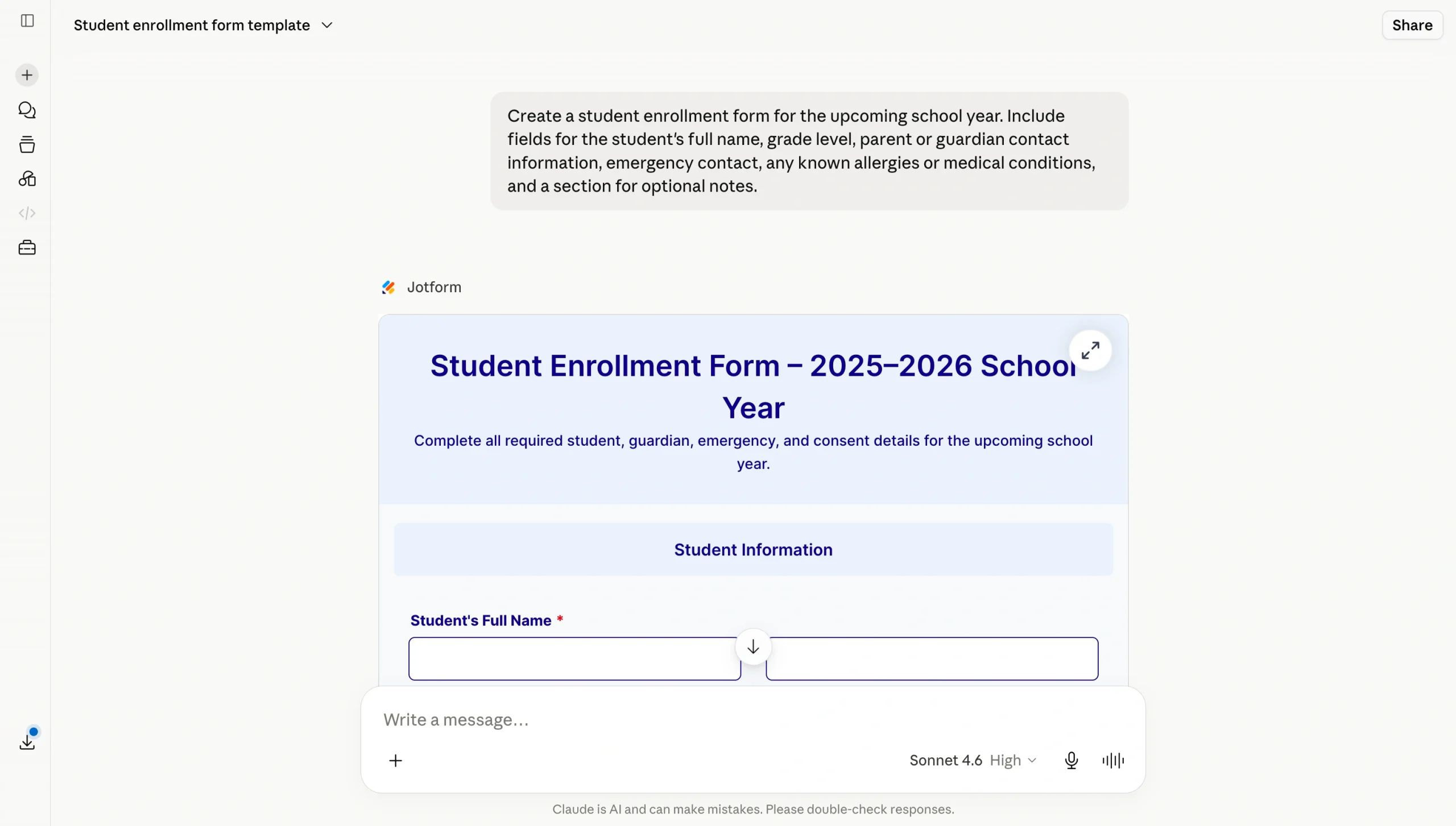
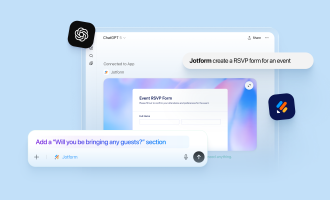
You can create a form in Claude with plain language prompts. For instance, you might say, “Create an event registration page for parents who want to attend a field day and sign up to bring snacks.” Once people submit responses, you can review their data without switching platforms.
The Claude Jotform education connector also offers many other useful functions.
Introducing the Jotform Claude App
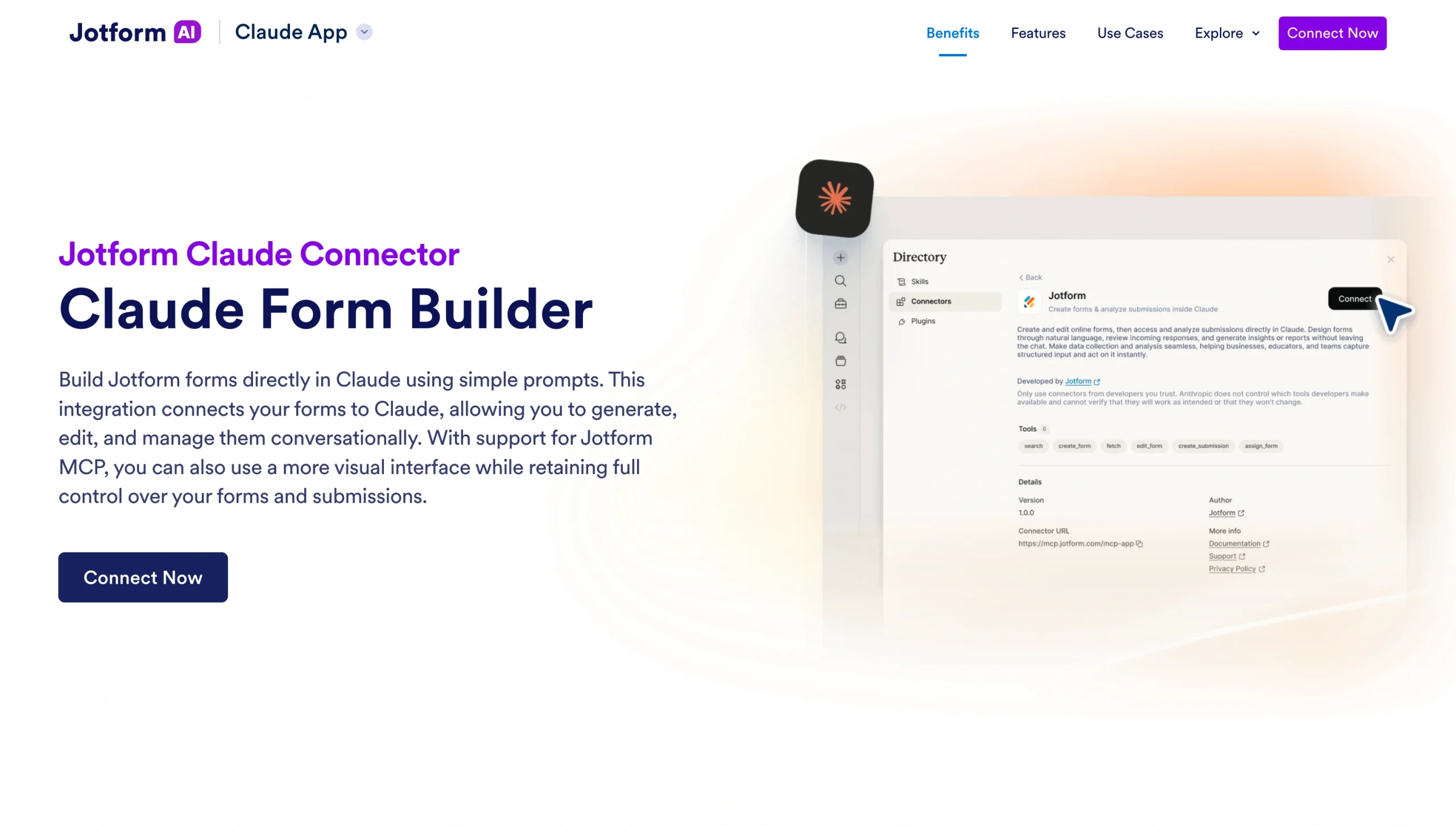
The Jotform Claude App lets you create, edit, and manage online forms inside the AI platform. Instead of opening separate survey software, you can design forms using natural language. Claude also summarizes and analyzes the results, giving you an instant snapshot.
This tool supports education teams by making it easier to gather many types of data, including
- Course feedback
- Parent consent forms
- School apparel orders
- Student assignments
- Student enrollment forms
This educational technology is easy to set up, too. Here’s how
- Log in to Claude.
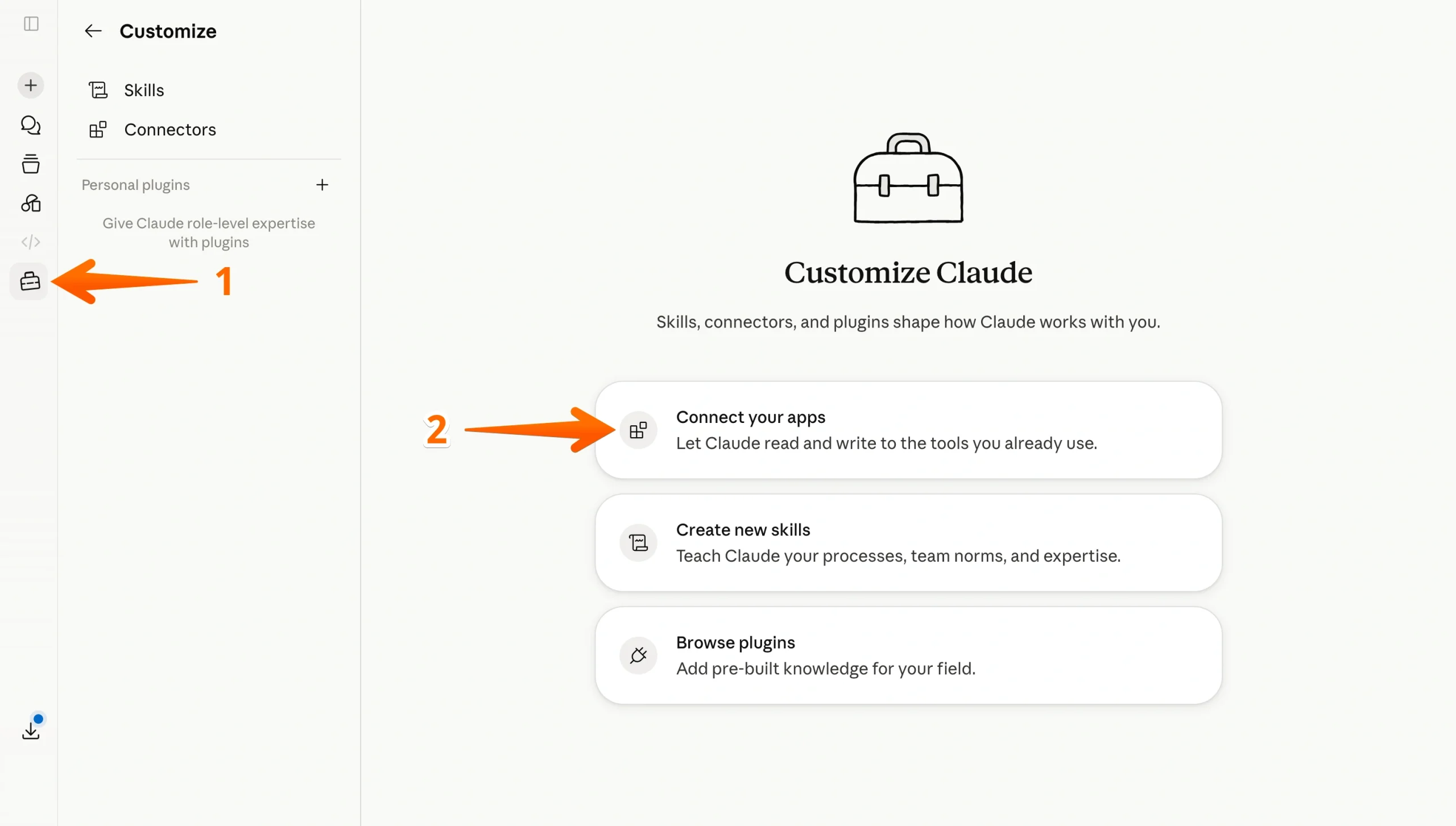
- Click the Customize icon in the left sidebar, then select Connect your apps.
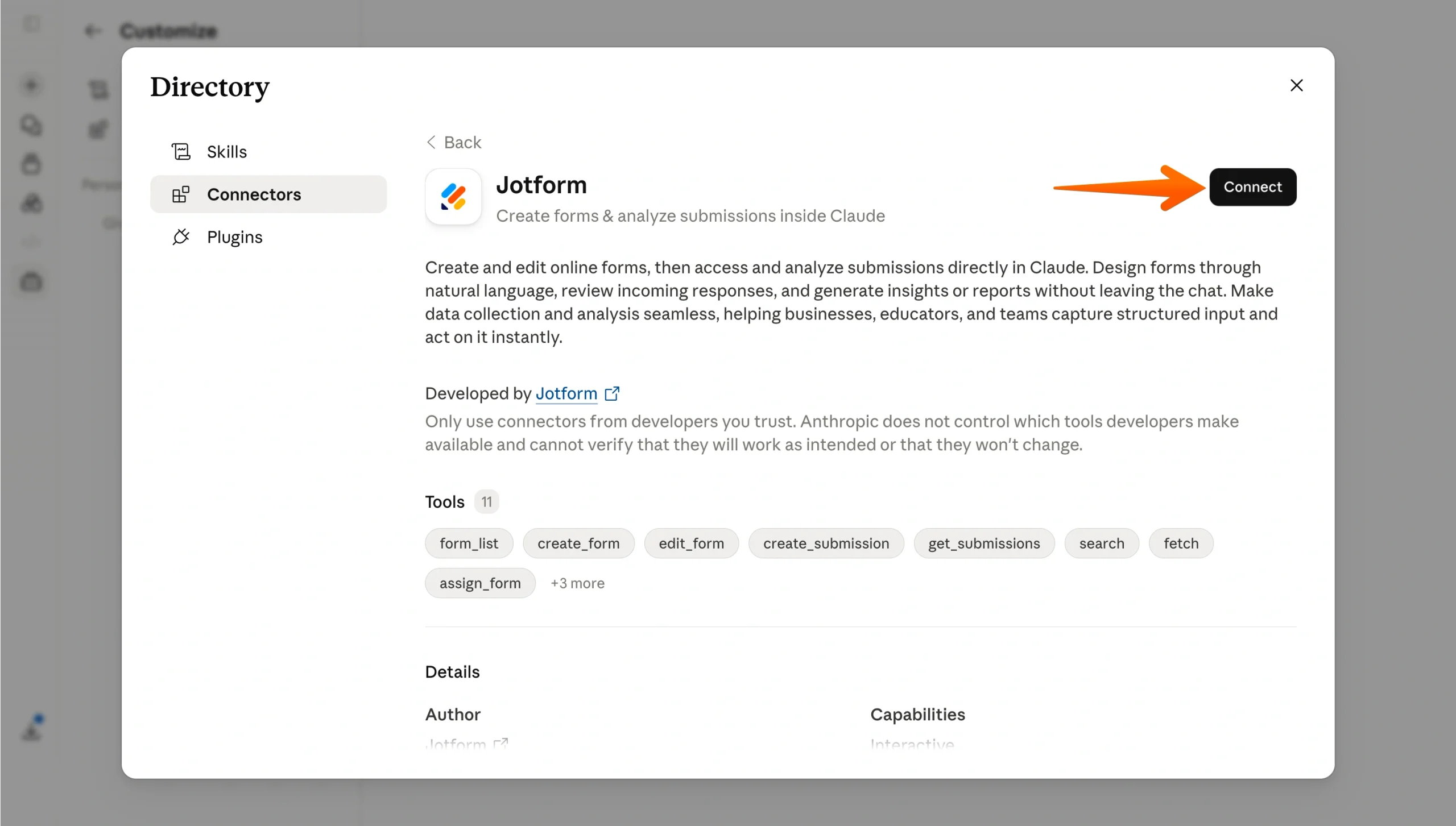
- In the Connectors, search for Jotform and click Connect. Sign in to your Jotform account and authorize access when prompted.
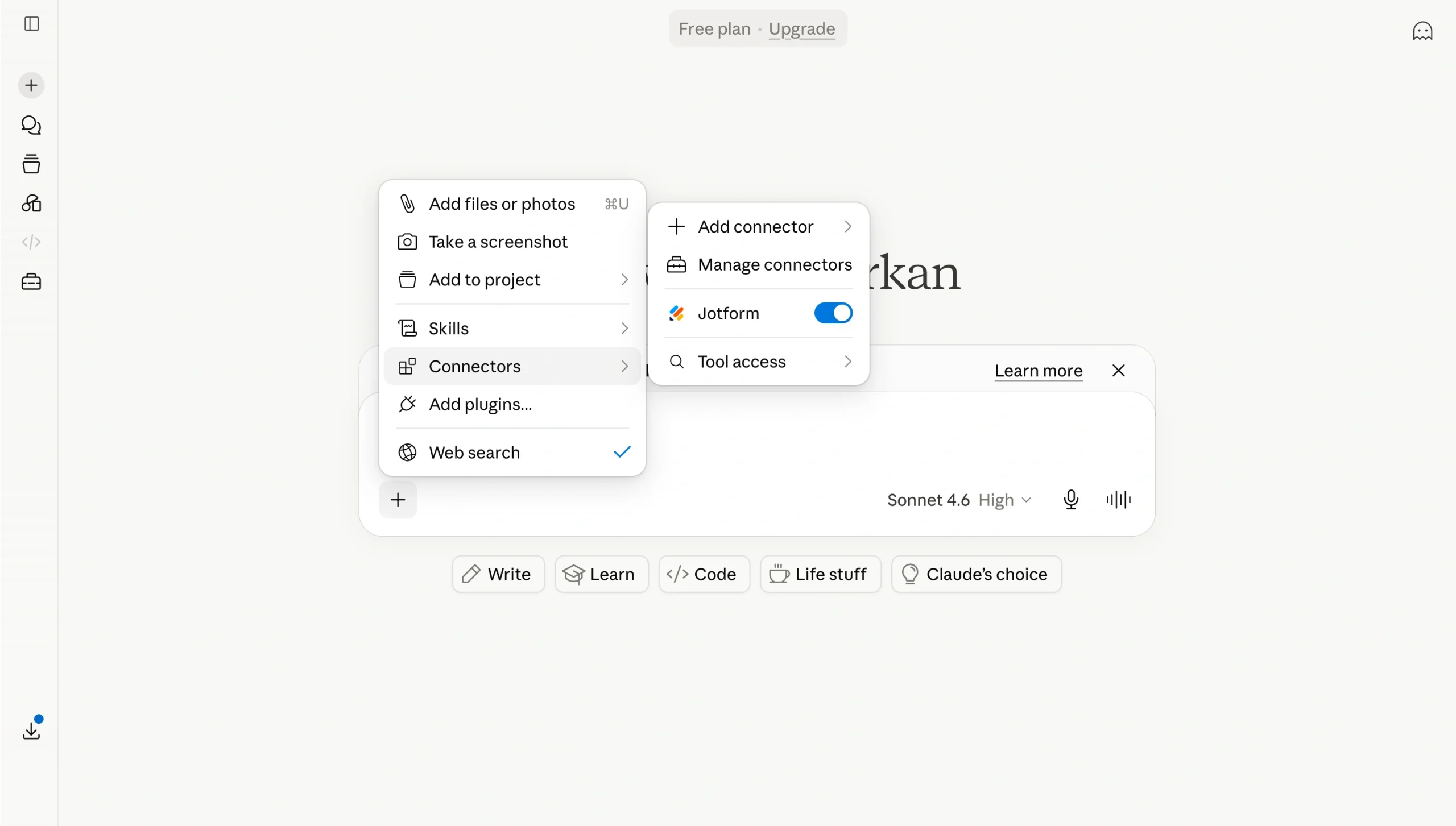
- Open a new chat, click the plus icon in the bottom-left corner of the chat input area, then select Connectors to enable Jotform for your session.
- Use a conversational prompt to create your first form.
- Input more prompts to improve your form. You can add or delete fields or change the wording for a question. Claude also lets you edit the layout and visual style.
- Use Jotform Claude App to view responses and filter them by data or specific fields.
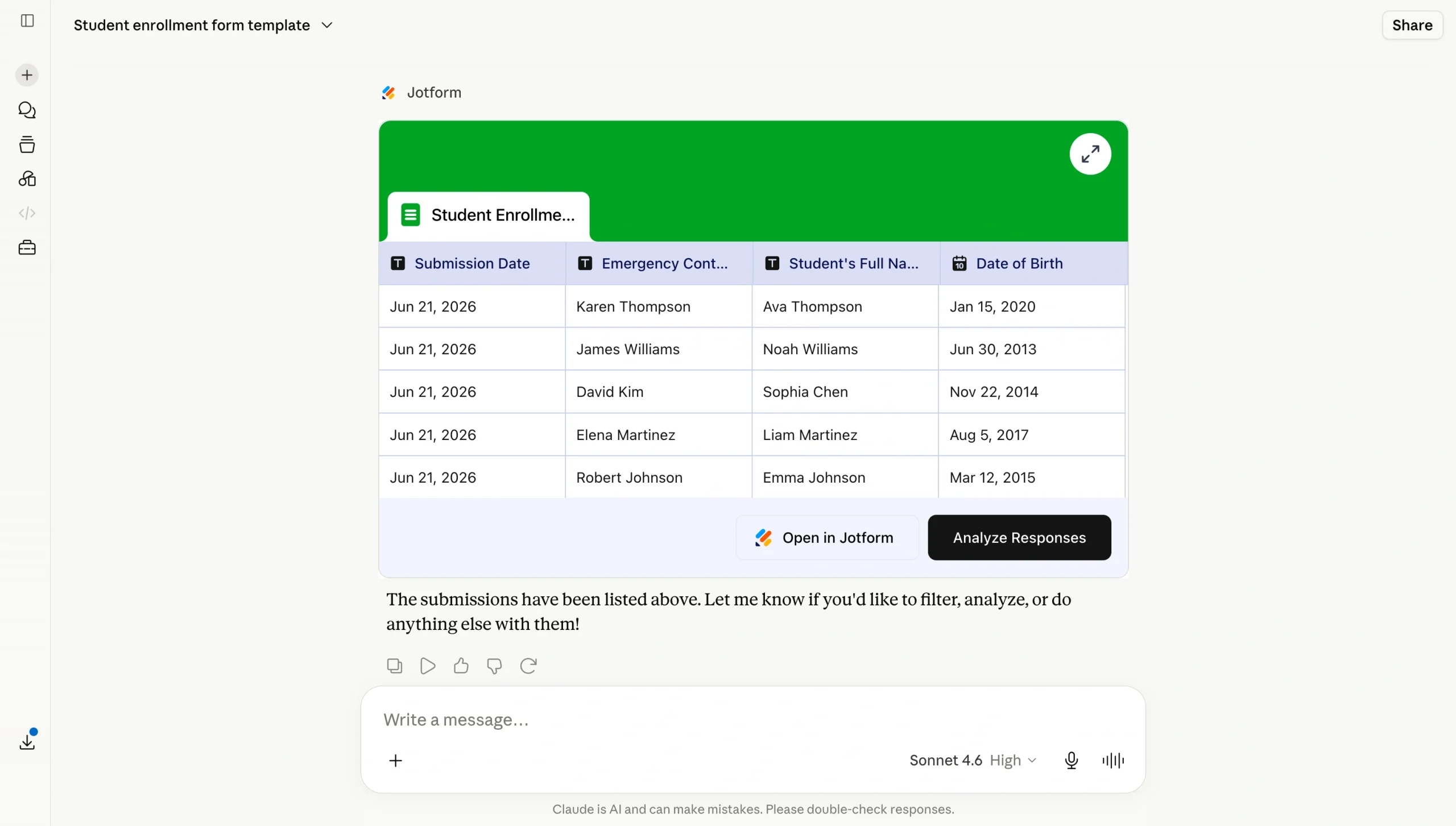
- Ask Claude questions about your data. For example, if you’re analyzing course evals, ask Claude for recommendations to improve your performance next time.
It doesn’t matter which student information system, LMS, or communication platform your school uses. The Jotform Claude App fits into your workflow and simplifies data analysis. That’s a huge time-saver for institutions running recurring enrollment cycles, post-course evaluations, or event permission processes. Instead of pulling together multiple platforms, you can manage everything in one spot.
Build Claude into your institution’s daily workflow
Adopting AI for school administrators and teachers requires careful planning. Ease into the process by starting with a single connector for a repetitive or high-volume task. If your team works with a lot of data, that’s often a form-based workflow. For example, you might use a connector to automate weekly assignment feedback or enrollment form processing.
Once you roll out your first tool, measure the time saved to make sure it’s effective. Then expand to others. If it makes sense, start with a single course or department before rolling out Claude connectors for educators across your institution.
Is your team tired of switching between tools to build forms and track responses? The Jotform Claude App brings both tasks together in one place. Try it free today.
This article is for teachers, instructional designers, school administrators, and higher education staff looking to use Claude to automate grading workflows, student communications, lesson planning, and institutional reporting.


































































































Send Comment: