-
 awhawley
Jotform Tables downloading old PDF mapping after deleting/recreating PDF Editor document
Hi Jotform Support,
I’m having an issue with PDF downloads from my Jotform Tables page.
I deleted all old PDF Editor documents/forms and created a new PDF document titled:
“Parent Check in / Check out”
However, when I go to the Tables view and choose:
Download → Check-In/Out Sheet
the system still generates/downloads from an old PDF mapping/template, not the new PDF Editor document.
The problem is that the Tables download menu is still showing the old PDF name:
“Check-In/Out Sheet”
instead of the new PDF document:
“Parent Check in / Check out”
It appears the table is still linked to an old PDF template/mapping even though the old PDF forms were deleted. I need help clearing or refreshing the PDF mapping connected to the Tables download menu so it uses the new PDF Editor document.
I’ve attached a screenshot showing the old option still appearing in the Tables download menu.
Can you please check the backend mapping/cache for this form/table and remove the old PDF download option?
Thank you.
-
 Podo: Support Specialist
Hi Andrew,
Thanks for reaching out to Jotform Support. I'm an AI assistant here to assist you.
Let me help you with that:
From the available information, Jotform Tables allows you to download submission PDFs through the Download options (for individual entries or via Download All), but there is no documented way to manage or clear specific named PDF layouts or “mappings” from the Tables download menu, nor to refresh a cached PDF template name from there.
The documented options are:
- Download as PDF / Original PDF for Smart PDF Forms, which uses the original PDF layout connected to the form.
- Download All (Excel, CSV, or PDF), which sends a ZIP of submission PDFs to your account email, but does not expose controls for renaming or removing individual PDF layout entries from the Tables menu.
However, there is no available information about a setting or action that would let you remove an old, named PDF layout (like your previous “Check-In/Out Sheet”) from the Tables Download menu or explicitly re-link that menu item to a newly created PDF document in PDF Editor. Likewise, there is no documented control to clear a backend cache or mapping for that specific Tables download entry.
Because of that, I am not able to provide a confirmed method to remove the old “Check-In/Out Sheet” option or force Tables to use your new “Parent Check in / Check out” PDF document from within the current documented features.
Let us know if you have any other questions.
-
awhawley
Thank you for the reply. However, this does not resolve the issue.
I understand there may not be a documented user-facing control for clearing or renaming PDF layouts from the Tables download menu. That is exactly why I’m asking for this to be escalated beyond documented self-service steps.
The issue is not that I need instructions for a documented setting. The issue is that Jotform Tables is still exposing and generating a deleted/old PDF mapping.
Details:
Form: Emerald Crossing VBS 2026!
Form ID: 261137278878168
Current/new PDF Editor template name: Parent Check in / Check out
Old/stale Tables download option still showing: Check-In/Out Sheet
I have already done the following:
- Cleared browser cache.
- Deleted the old PDF Editor templates.
- Created a new PDF Editor document.
- Remapped the fields.
- Returned to Tables → Download.
Despite this, the Tables Download menu still shows the old PDF option and appears to generate from the old mapping.
This suggests there is a stale table-level PDF export reference, cached backend association, or orphaned PDF layout entry that is no longer manageable from the UI.
Could you please escalate this to a human support agent or technical team to inspect the backend configuration for this form/table and remove or refresh the stale PDF mapping connected to “Check-In/Out Sheet”?
The desired result is that Tables → Download should use the current PDF Editor template titled “Parent Check in / Check out”, not the old deleted template.
Thank you,
Andrew
-
Podo: Support Specialist
Hi Andrew,
One of our Support Team members will take it from here to follow up shortly.
-
 Sheena JotForm Support
Hi Andrew,
Looks like the screenshot didn’t come through on my end. Can you capture a video of what’s going on and share it? Loom works great, or you can upload it to Google Drive or Dropbox.
Once we hear back from you, we'll be able to move forward with a solution.
-
awhawley
I just uploaded a screen video of the problem here on YouTube. Here is a link to YouTube to see what is wrong.
or you can provide me with a google drive / dropbox way to up load it to you and I can do that as well.
thank you.
-
AAndrew Hawley
Just kidding, YouTube didn't work.
please see video uploaded to Google Drive right here!
https://drive.google.com/drive/folders/1F8Ejf8vAiKv7R395CARvTFZZN00tBKni
-
 Mikhail JotForm Support
Hi Andrew,
I reviewed your screencast and can see that you're trying to download the PDF from another connected Table. If you need to download the PDF in the VBS Confirmations Table, you'll need to update the PDF in the VBS Confirmations PDF Editor.
Give it a try and reach out again if you have any other questions.
-
AAndrew Hawley
I already updated the PDF in the VBS confirmations tab and was still unable to download it correctly. Is there anything else that would be hindering me from being able to download it? Please look into this further and advise.
-
 Kevin JotForm Support
Hi Andrew,
Let me take a look at this for you. To do that, we’ll need your permission to access your account. Don’t worry, you can turn it off again once we’re done. Let me show you how to do it:
1. In the top-right corner of your Workspace page, click on your Avatar/Profile Image icon.
2. Then, in the Dropdown menu that opens, click on Settings.

3. Next, in the panel on the left, click on the Security tab.
4. If you haven’t opened your Security page in a while, it’ll ask you to verify. To do that, click on Send Verification Code.
5. Then, enter the Verification Code you receive in your email.
6. Finally, at the bottom of the page, toggle on Jotform Support Access.
After we hear back from you, we’ll have a better idea of what’s going on and how to help. -
AAndrew Hawley
Thank you for the reply.
these steps have been competed.
Jotform Support Access is completed and ready for you to access!
-Andrew
-
Kevin JotForm Support
Hi Andrew,
Thanks for sharing access to your account. I had a look at your form and was able to see what you're reporting, but this is the expected behavior since you have connected Tables. When you download the PDF document from the VBS Confirmations tab, you will see the PDF documents of the form linked to that Table. It's easy to find the form linked to the Table. Let me show you how:
1. In Jotform Tables, click on the Form button on the right side of the screen.
2. In the menu that opens, click on the View Form option.
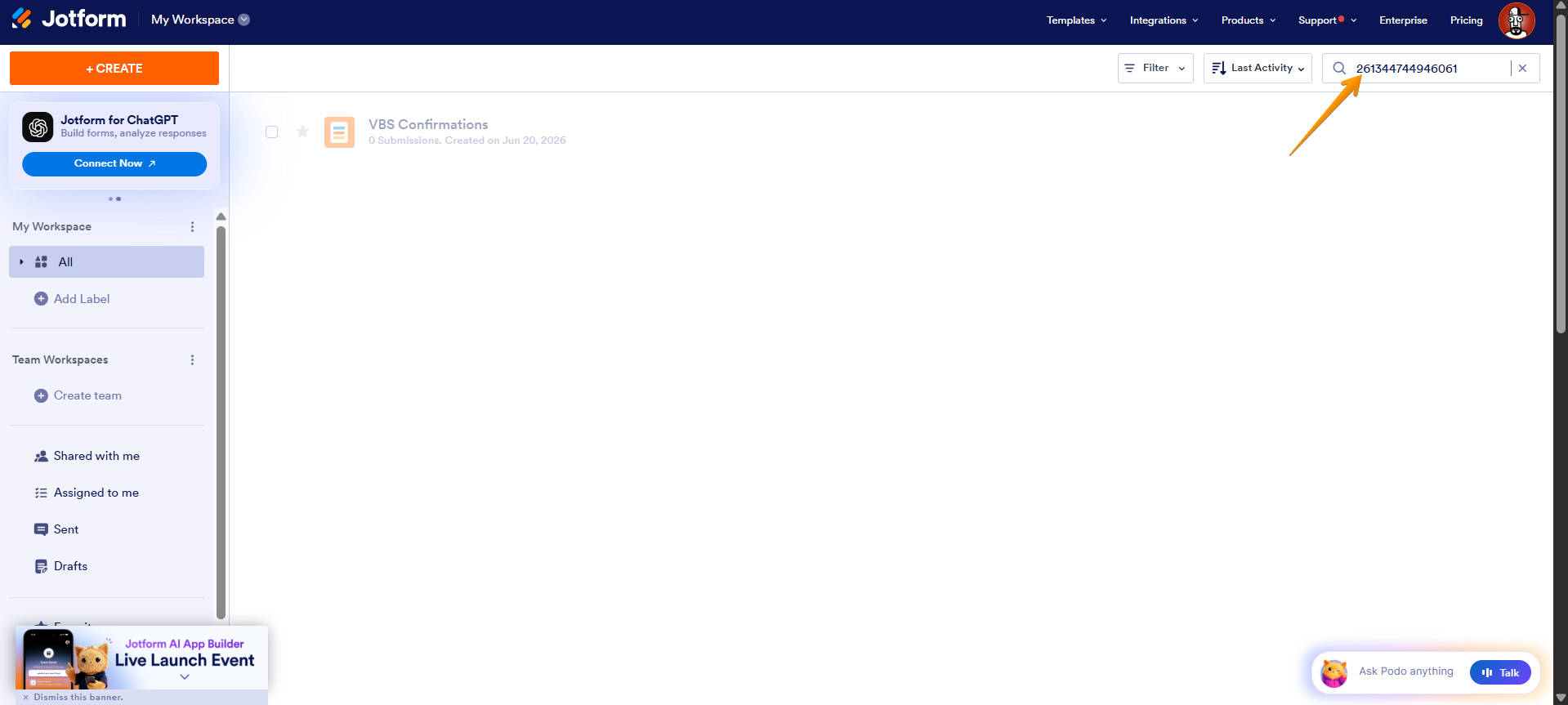
You will be redirected to view the form, copy the Form ID, which is the set of numbers at the end of the Form URL, for example, /jf/www.jotform.com/form/261344744946061. Then search in My Workspace using the Form ID to find the form. Here is a screenshot for visual reference:
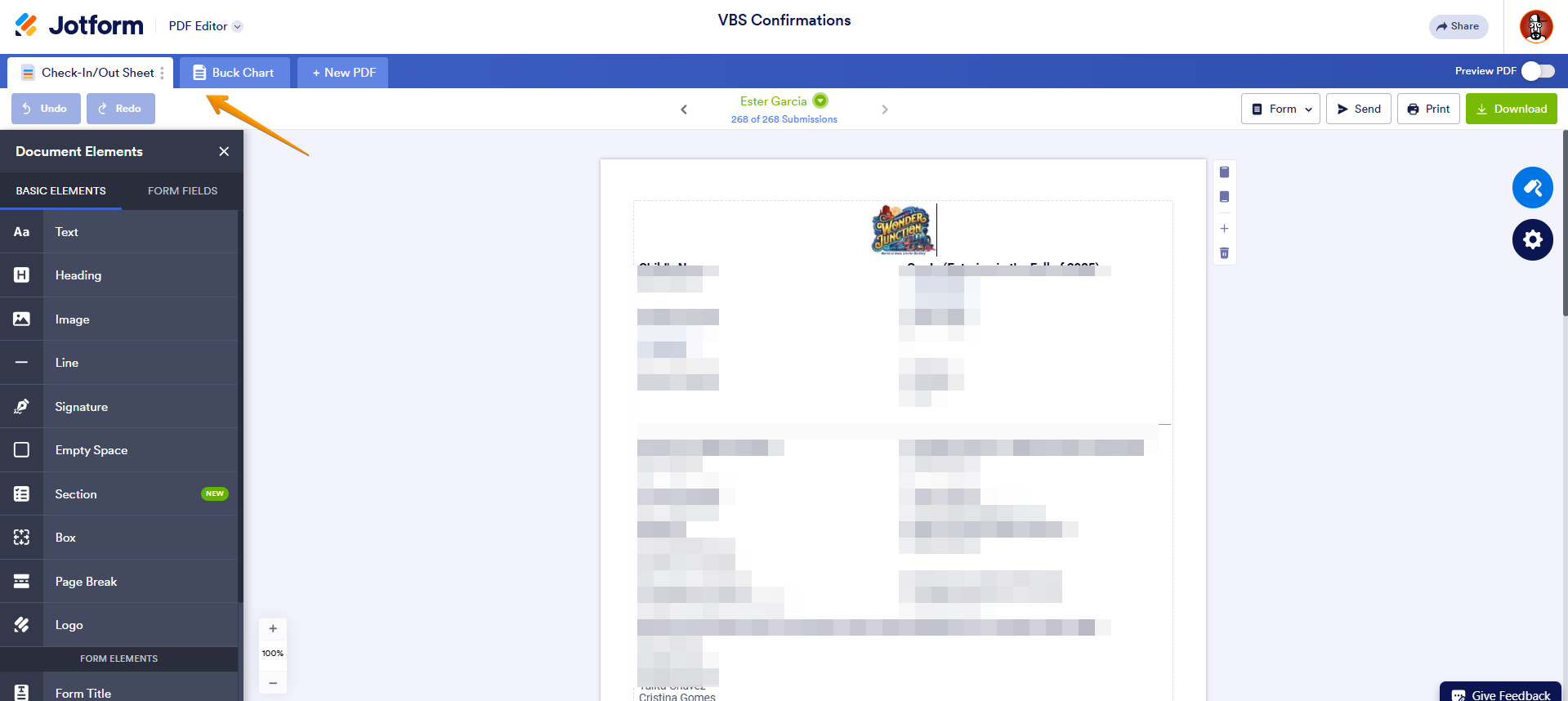
After checking the PDF documents linked to your form, you will find the same documents you're seeing in the Tables page:
It's important to mention that connected Tables will allow you to download the PDF version of the original connected form only; it's not possible to have it connected to the PDF documents from the main form.
Give it a try and let us know if you need any help.


 After we hear back from you, we’ll have a better idea of what’s going on and how to help.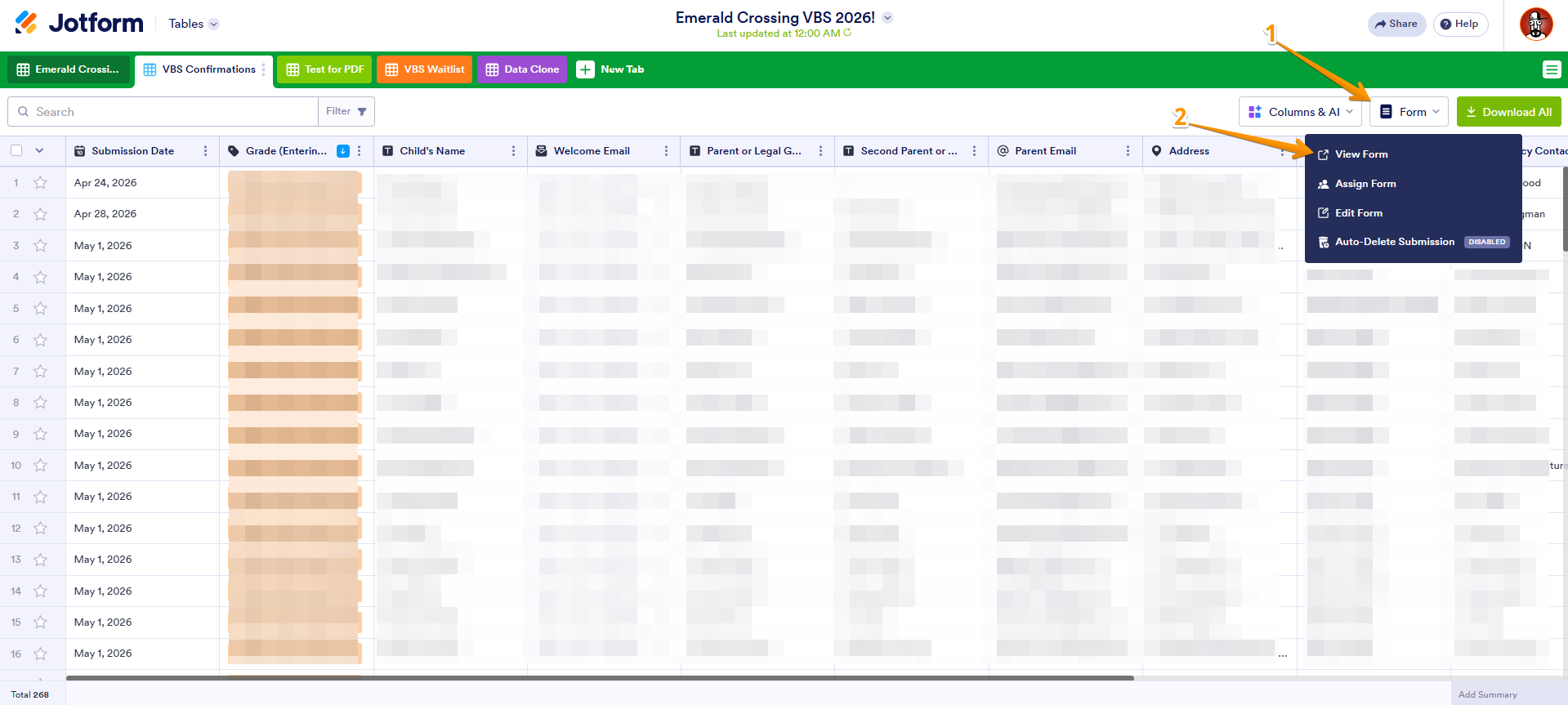
Your Reply
Something Went Wrong
An error occurred while generating the AI response. Please try again!