-
 aardiansyah712
Hello, i would like to create survey form that would tally the percentage of negative, neutral and positive responses on the input table. I tried with numerous helper fields and condition IF with no luck. Can someone point me to the right direction?
Page URL: /jf/form.jotform.com/261695886187074 -
 Podo: Support Specialist
Hi Ardiansyah,
Thanks for reaching out to Jotform Support. I'm an AI assistant here to assist you.
Let me help you with that:
To tally the percentage of negative / neutral / positive answers from an Input Table, you’ll need to (1) assign numeric values to each option, (2) count how many of each type were selected, and (3) compute the percentages with a calculation. Jotform does this using Calculation Values and either Form Calculation or Update/Calculate Field conditions.
Here is a practical way to set it up if your Input Table uses radio buttons or checkboxes (e.g., columns = Negative, Neutral, Positive):
Phase 1 – Configure the Input Table for calculations
- Select your Input Table field in Form Builder and click on its gear icon to open properties.
- Go to the Options tab at the top of the properties panel.
- Set Calculation Values so each column has a numeric value. For example, if each row has three columns (Negative, Neutral, Positive), you can assign:
- Negative = 1, Neutral = 0, Positive = 0 (for a “negative count” table)
- Or use a separate Input Table / calculation for each sentiment type.
Phase 2 – Use a Form Calculation widget to count selections
- Add a Form Calculation widget to your form.
- Click on its wand icon to open the calculation editor, then click on Add Field and choose your Input Table.
- Select the sub-fields (cells) that correspond to the sentiment you want to count (e.g., all “Negative” cells) and build a formula that sums them. For example, sum all negative cells to get Total Negative.
Phase 3 – Calculate percentages
- Add another Form Calculation widget (or reuse the same one) to compute the total number of answers (e.g., number of questions × 1 if each row must have exactly one choice, or sum of all three sentiment counts).
- Create a formula like ({Total Negative} / {Total Answers}) * 100 to get the negative percentage. Do the same for neutral and positive.
- Save the widget settings so the calculated percentages appear on the form or in submissions.
If your Input Table uses numeric text boxes instead of choices, you can also use Update/Calculate Field conditions to compute averages or other metrics directly into a column of the same table, as shown in the guide on calculating values in an Input Table using conditional logic. For checkbox/radio-based tables, the Calculation Values + Form Calculation widget method is the recommended approach.
If you can share how your table is structured (rows/columns and input type), we can outline the exact formulas for your negative/neutral/positive percentages.
Give it a try and let us know how it goes.
-
aardiansyah712
Thank you for your advise, i've tried your pointer and the result is not what i was hope for.
i have difficulty following your advise on creating "negative count".
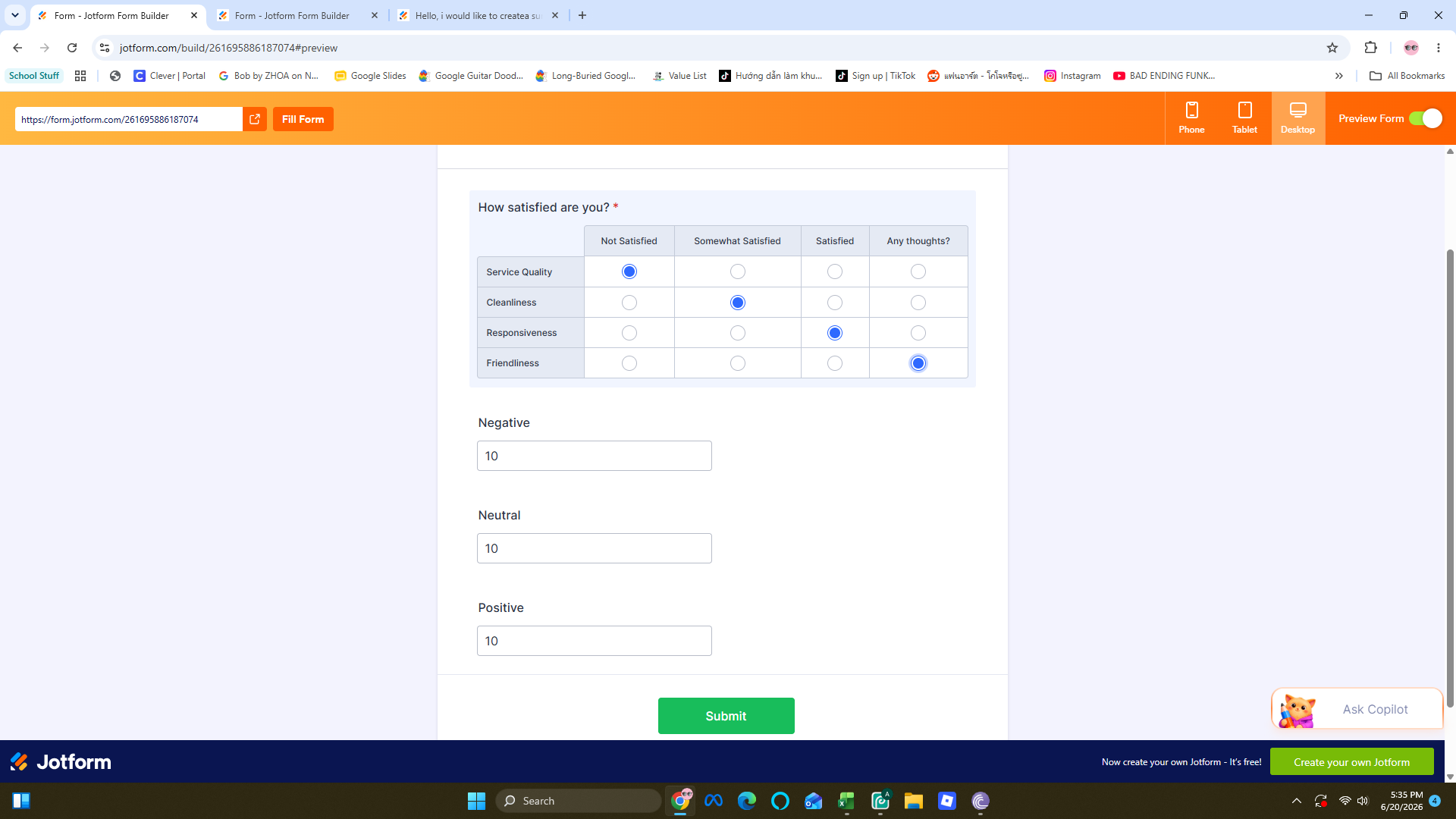
this screen shot is the result (without percentage calculation yet)

The result i was hoping was negative "1" and Neutral is "1" and positive "1"
each calculation widgets is the same since i can not select satisfaction column on the menu.
Thank you for your time.
-
 Keenly JotForm Support
Hi Ardiansyah,
When I cloned and tested your form, the same thing happened for me. After investigating it a bit, I found a solution. Let me show you how:
1. In Form Builder, select the Input Table field and click on the Gear icon.
2. Next, in the Input Table Properties menu on the right, click on the Fields tab.
3. Then, under the Input Type section, select the Multi-type Columns option.
4. While still in the Input Table Properties menu, click on the Options tab, and update the Calculation values to 1,1,1,1 for all rows.
1. In Form Builder, in the orange navigation bar at the top of the page, click on the Settings.
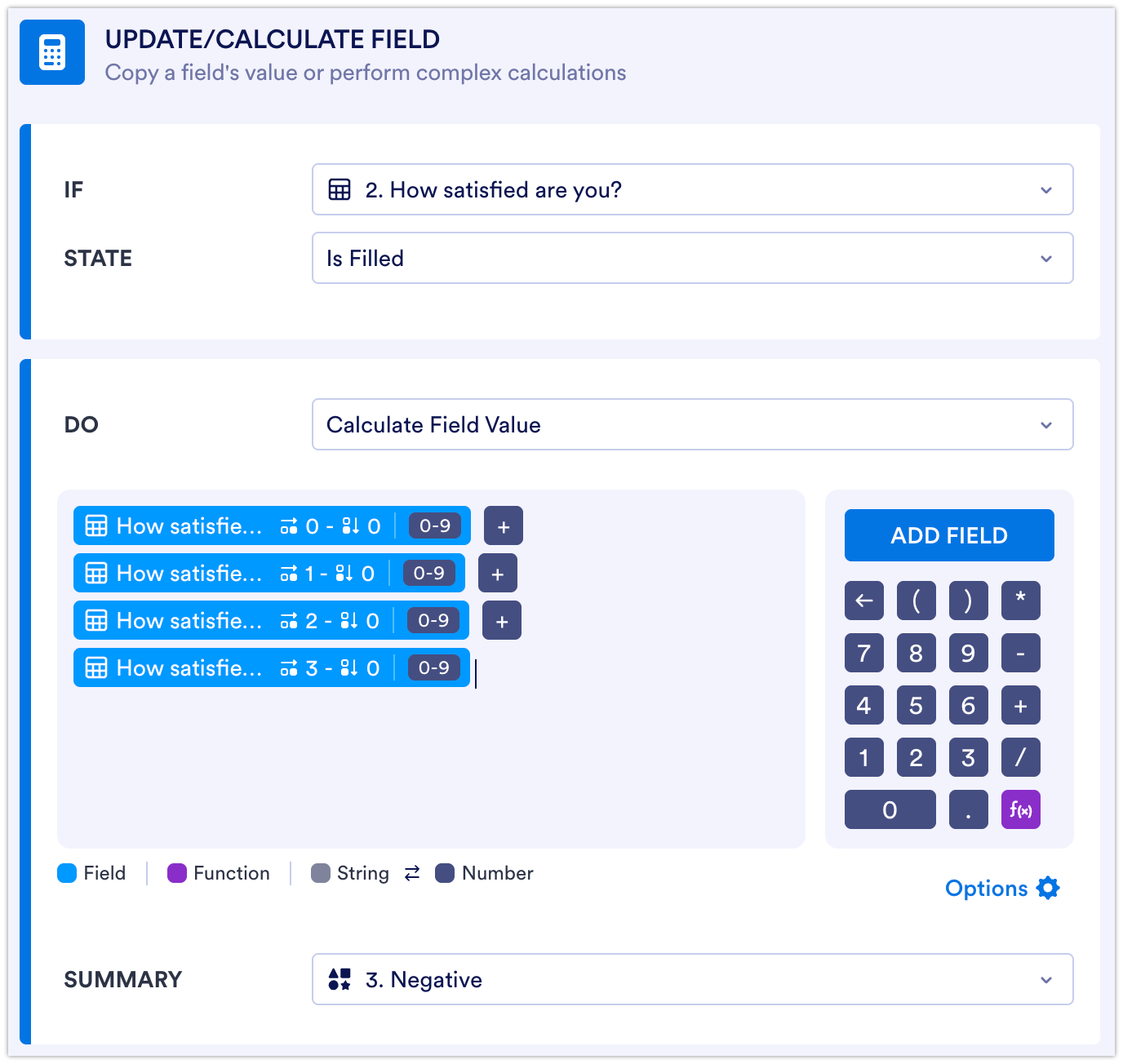
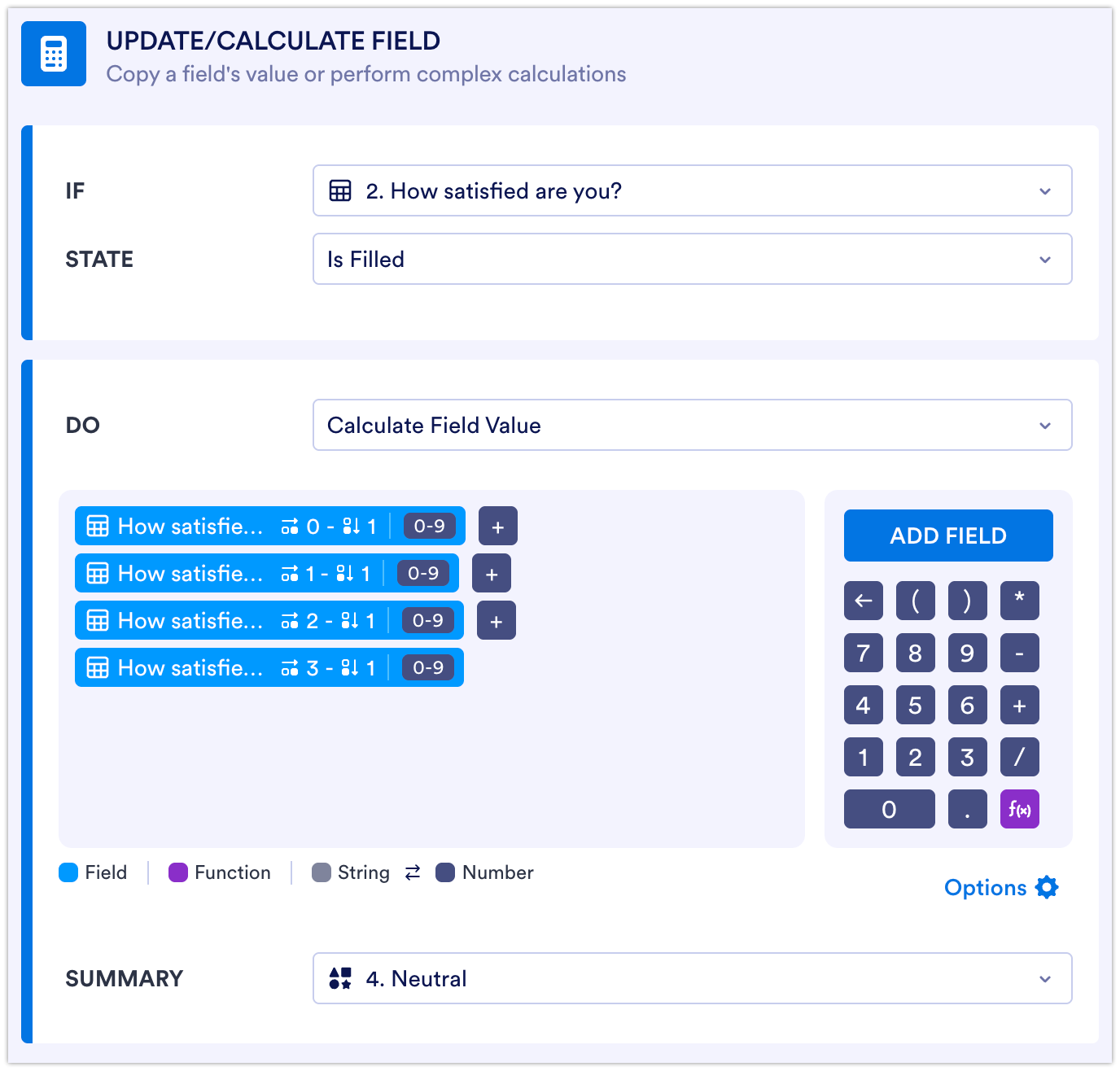
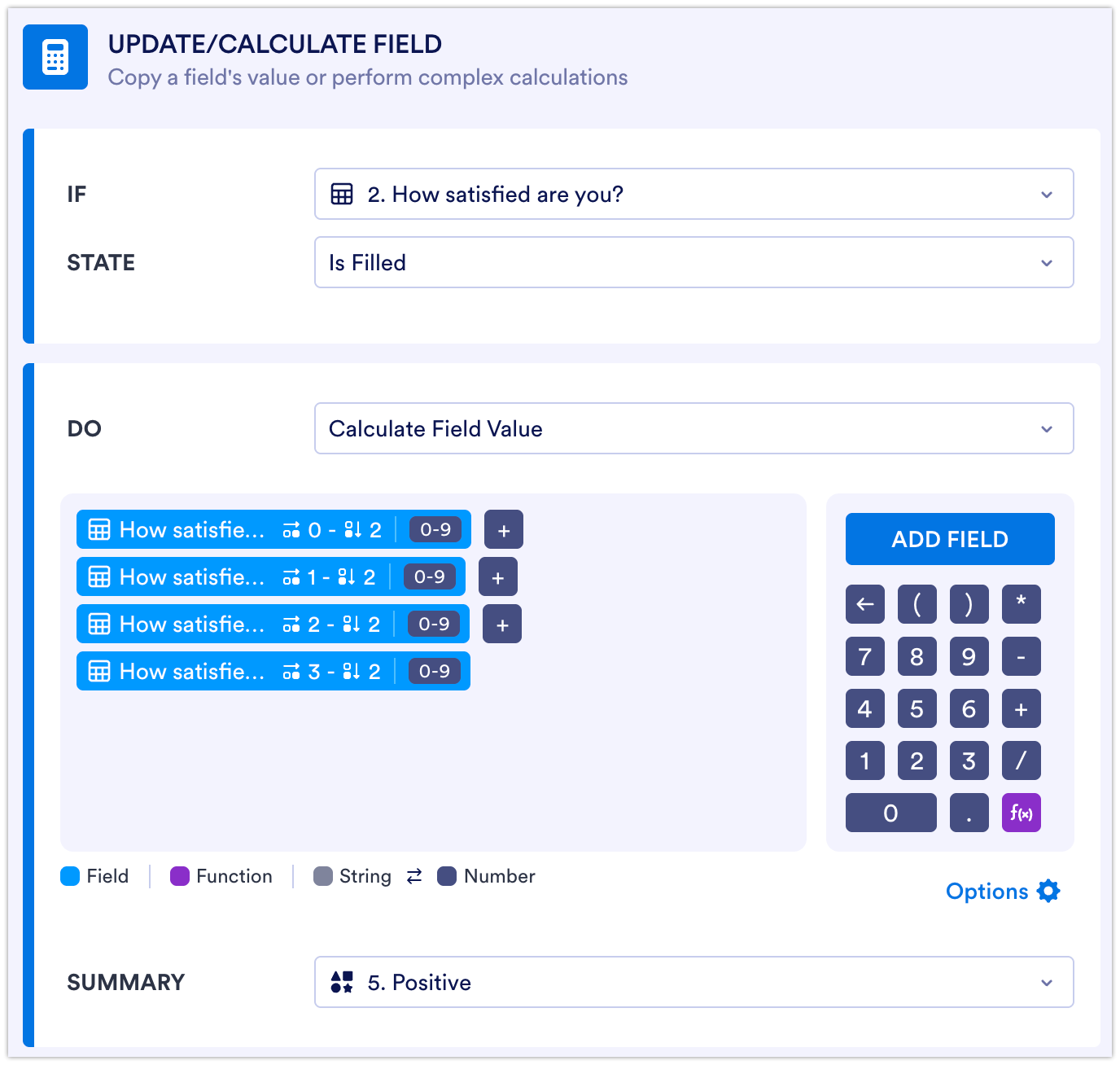
2. In the menu on the left side of the page, click on Conditions, and then select Update/Calculate Field.
3. Set the conditions as you see below:
Lastly, don’t forget to remove the calculations you’ve set up in each of the Form Calculation widgets so they won’t overlap with the calculations assigned through the form conditions you just set up. Check out the results:
Try that and reach out again if you need more help.
Your Reply
Something Went Wrong
An error occurred while generating the AI response. Please try again!