

To embed a form on a website or blog:
- Open your form and click the purple Send button in the top right corner.
- In the “Send via” menu, click the < > (Embed HTML) icon.
- Adjust the width and height of the form to fit your website’s layout.
- Click Copy in the bottom right corner.
- Go to your website builder and paste the code into an HTML or Embed block.
Sending visitors away from your website to a raw Google Forms link is a conversion killer. It breaks the user experience, pulls people out of your branded environment, and makes it harder to track what’s happening on your page. The smarter move is to embed the form directly onto your contact page, landing page, or wherever you’re collecting responses.
The good news: Google Forms makes this straightforward. It generates a simple iFrame embed code that you can drop into virtually any website builder or HTML block. In this guide, we’ll show you exactly where to find that code, how to paste it, and what to do when Google throws a restriction error.
How to embed a Google Form into a website
Whether you’re the owner of a large enterprise, a small e-commerce shop, or something in between, your company website is probably one of your most important assets — especially for your customers. It serves as an information hub for those both familiar with and new to your brand, offering forms that enable customers to easily get in touch with you, shop your products and services, and provide feedback.
Here’s how to embed a Google Form into a website:
- Navigate to your Google Forms homepage.
- Select the form you’d like to embed into a website from the Recent forms section or create a new one from scratch.
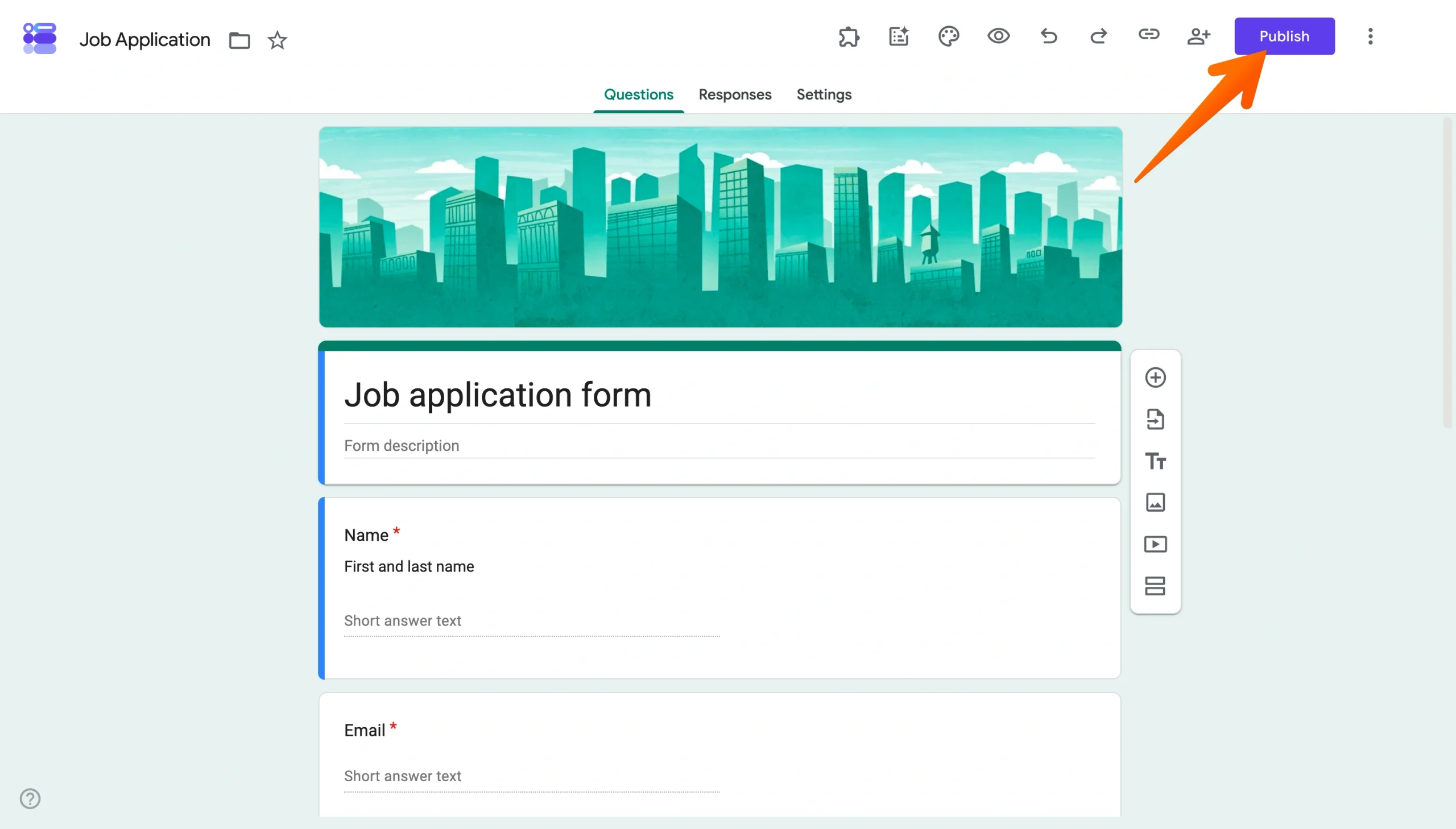
- Once you’re happy with your form’s design, click the purple Publish button in the top right corner to make your form live.
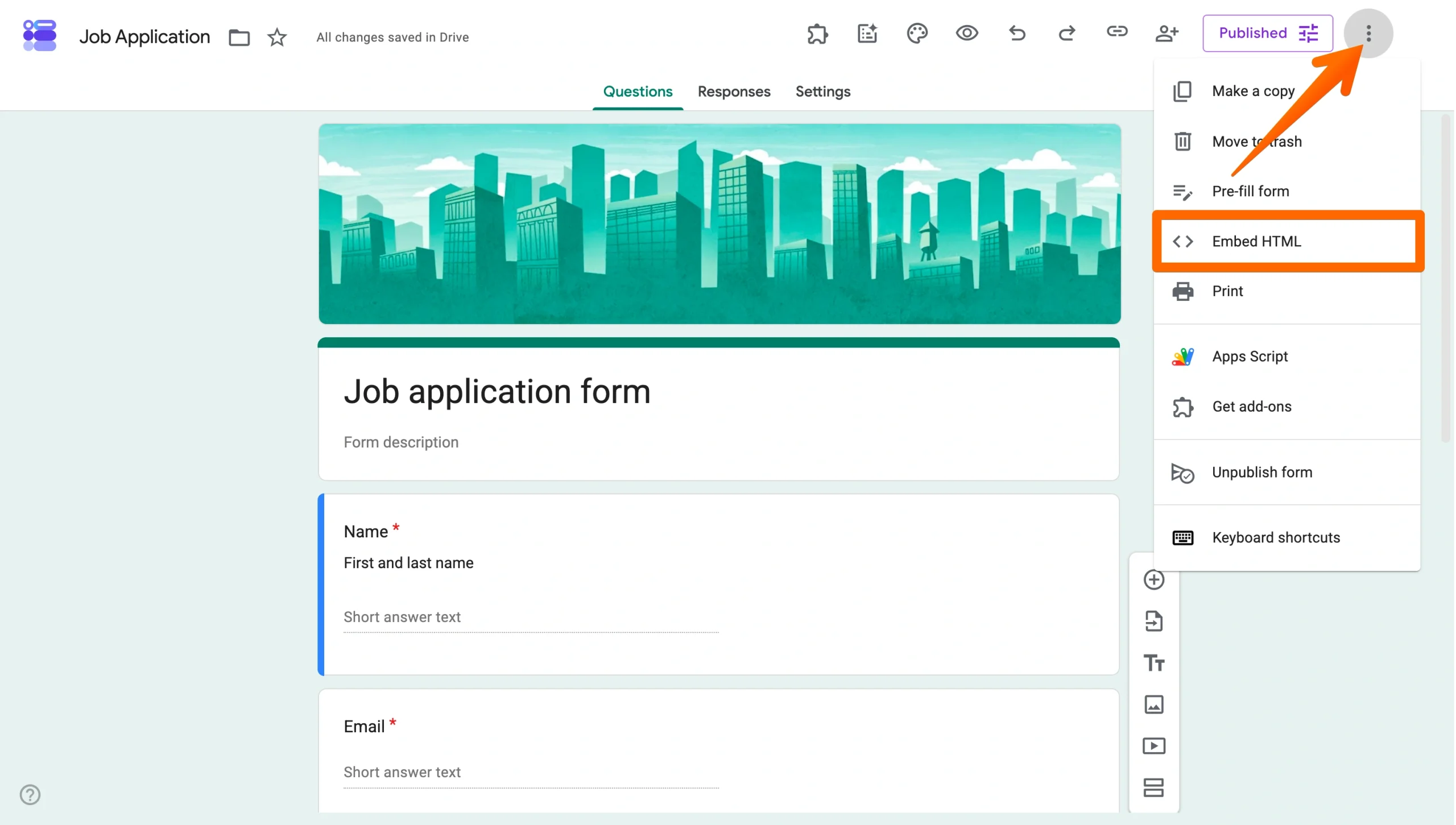
- Next, click the three vertical dots icon located in the top right corner and select Embed HTML from the dropdown menu.
- Copy the code that appears under Embed HTML.
- Finally, paste the copied HTML code wherever you’d like to display it on your website.
Pro Tip
If visitors see a restriction error, click the Publish button at the top right, select Manage, and change the General access from your organization to Anyone with the link.
How to embed a Google Form into an email
In addition to embedding one into your website, you can also learn about Google Forms embed in email. This method is particularly useful if you’re sending out a survey that you’d like only a select group of people to complete or if you’d like to draw immediate attention to it by sending it directly to your customers’ inboxes. (However, Google Forms limits the number of emails you can send forms to on a daily basis according to your Google account type, so depending on how many recipients you’re trying to reach, emailing your forms may not be your best option.)
Here’s how to embed a Google Form into an email:
- Head to your Google Forms homepage and select the form you’d like to embed in an email.
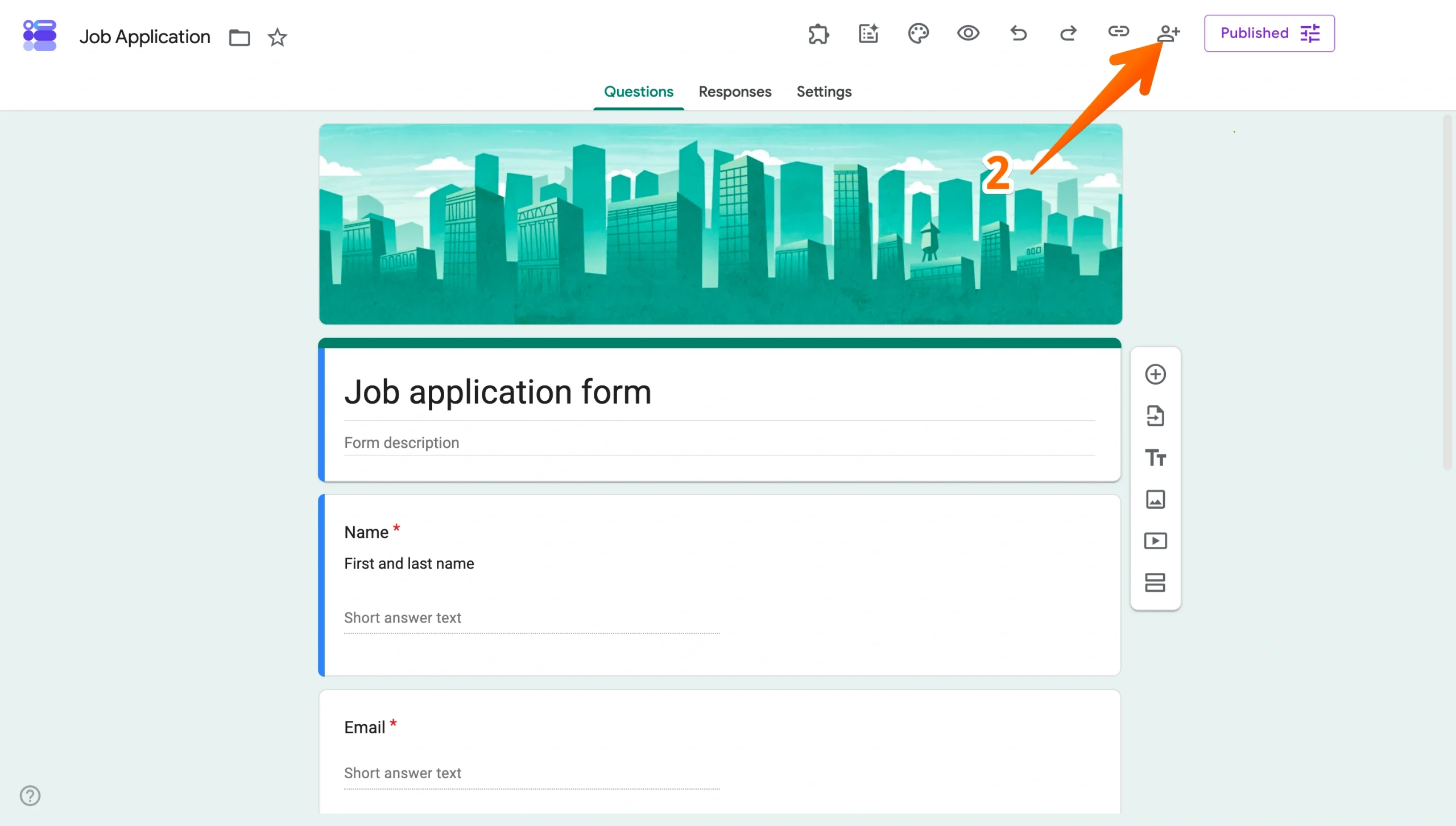
- Click the Share button in the upper right corner.
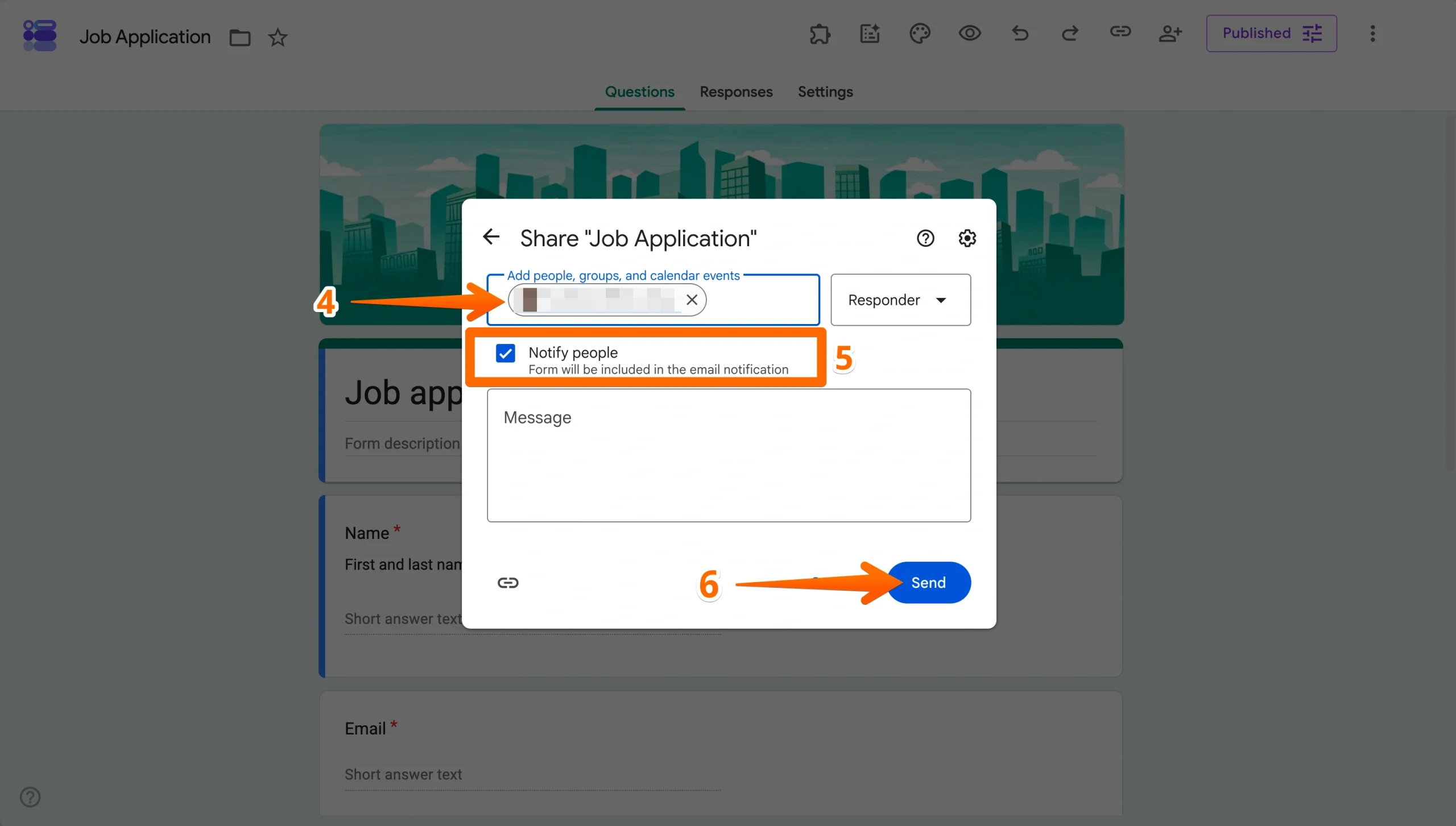
- Enter the recipient’s email address in the box. You can also add groups or events.
- Check the box next to Notify people. This guarantees the interactive form is included directly in the email notification.
- Add an optional note in the Message box and click Send.
How to share a Google Form with a link
Creating a shareable link to a Google Form — perhaps to post on social media or include in a blog — is another way respondents can receive and complete your form. This option, which is especially advantageous if you receive more traffic on Facebook or Instagram than your company’s website, can help you add a customer feedback survey or event registration form directly to your social media bio.
Here’s all you have to do:
- Select the form you’d like to use from your Google Forms homepage.
- After you’ve made your customizations and are ready to share the form, click the Publish button in the top right corner.
- Click on Copy responder link button.
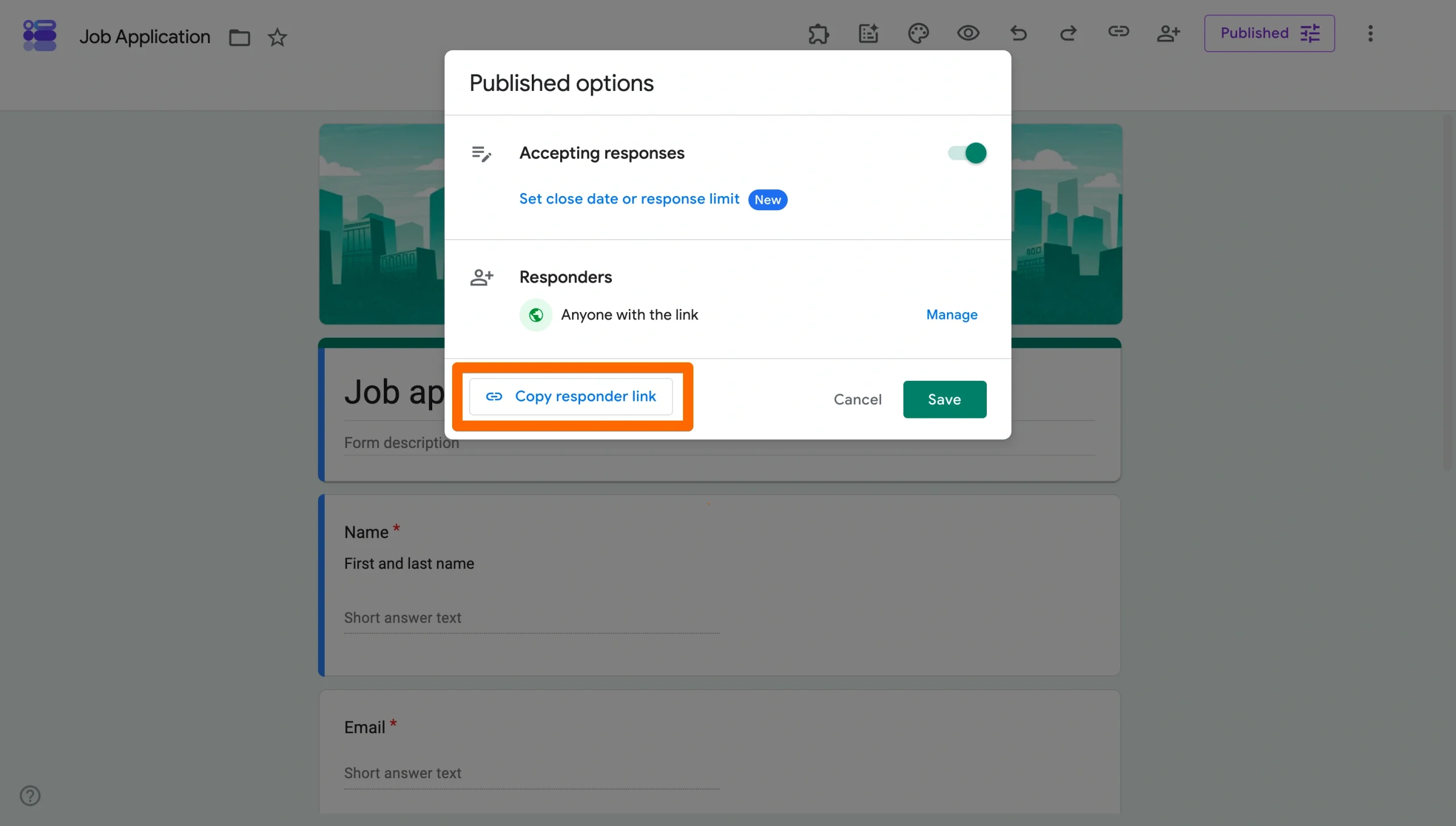
- Paste the copied link in a social media post, blog, email, or anywhere else you’d like the link to appear.

Looking for the best alternative to Google Forms?
Jotform’s full-featured form-building solution is mobile-friendly and has the most integrations in the industry. Use it to collect payments, automate workflows, gather leads, and more.
Why Jotform is a great Google Forms alternative
Now, as impressive and user-friendly as Google Forms is, it does have its disadvantages.
For starters, compared to other online form builders, it’s not nearly as comprehensive. Its template library is fairly minimal — as are the available colors, fonts, and other design features. Google Forms also lacks native integrations with third-party apps, which limits its versatility as well as its usefulness in everyday processes, like automating workflows and collecting e-signatures.
Additionally, there are limitations to embedding Google Forms in your website. If you want to restrict responses to one per person, respondents must be signed in to a Google account to submit the form. This limitation may shrink your potential respondent pool and discourage people from filling out the form. It can be difficult to choose between receiving accurate responses from verified respondents and excluding non-Google users.
Google Forms’ limited design and customization options also make it difficult to match your website’s branding compared to other solutions. Online form builder Jotform, for example, includes many of Google Form’s most popular features — and much more. It’s easy to use, highly secure, fully customizable, and completely code-free. Choose from Jotform’s 20,000-plus ready-made templates to create stunning, professional-looking forms, surveys, quizzes, apps, and e-commerce stores.
Then, using Jotform’s intuitive drag-and-drop builder, customize your form with fun and engaging widgets, e-signature capabilities, payment processing functionality, and other powerful and popular integrations. Finally, when you’re ready to publish your form, simply embed it into a website or share it in an email or with a link — similar to how you would in Google Forms.
How to embed a Jotform form into a website
Whether you create your Jotform form from scratch or use one of the thousands of customizable premade templates, the process for embedding it into your website is the same:
- Select your form from Jotform’s Form Builder.
- Click Publish from the list of options in the center of the screen.
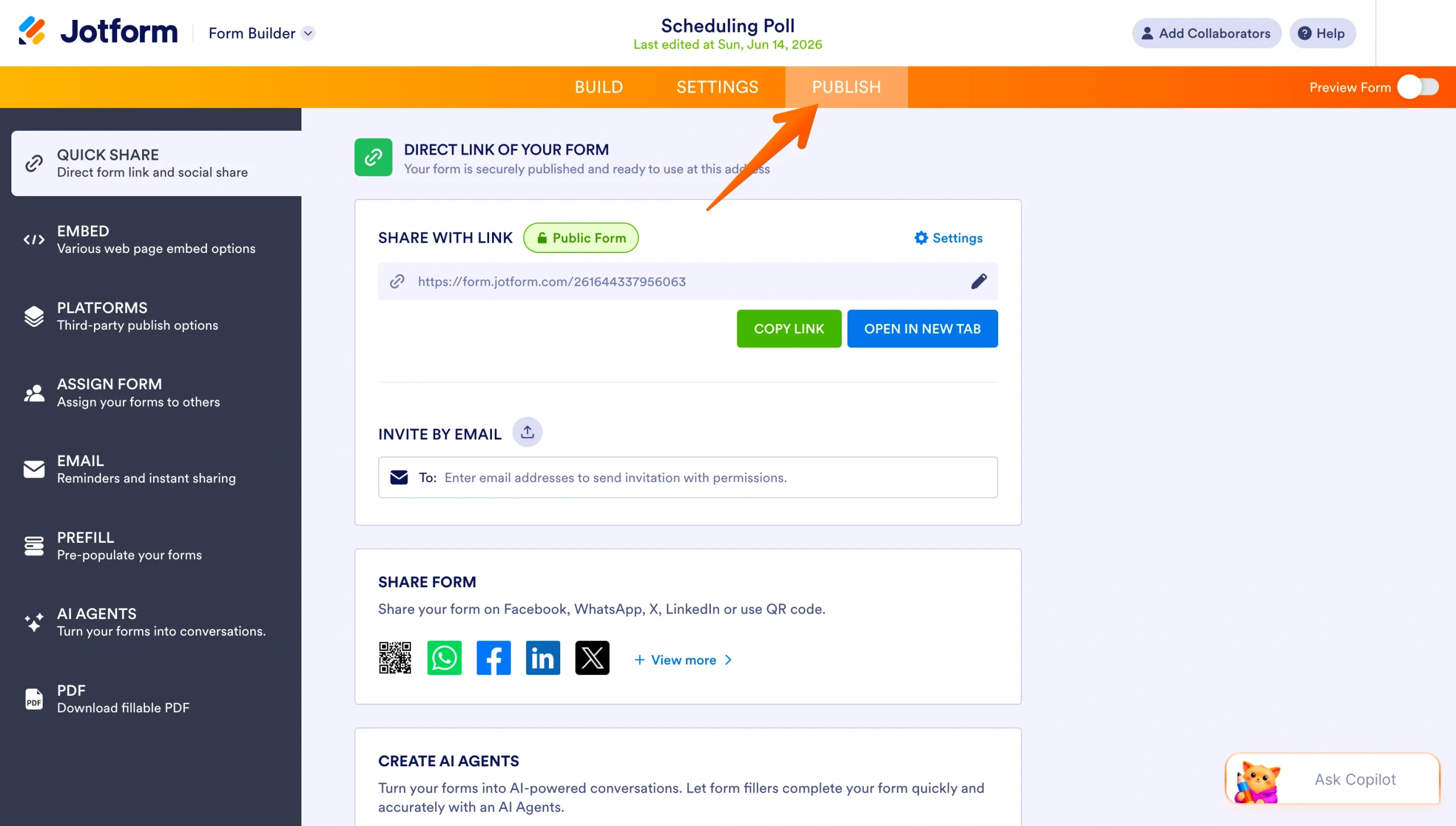
- Click Embed in the left toolbar.
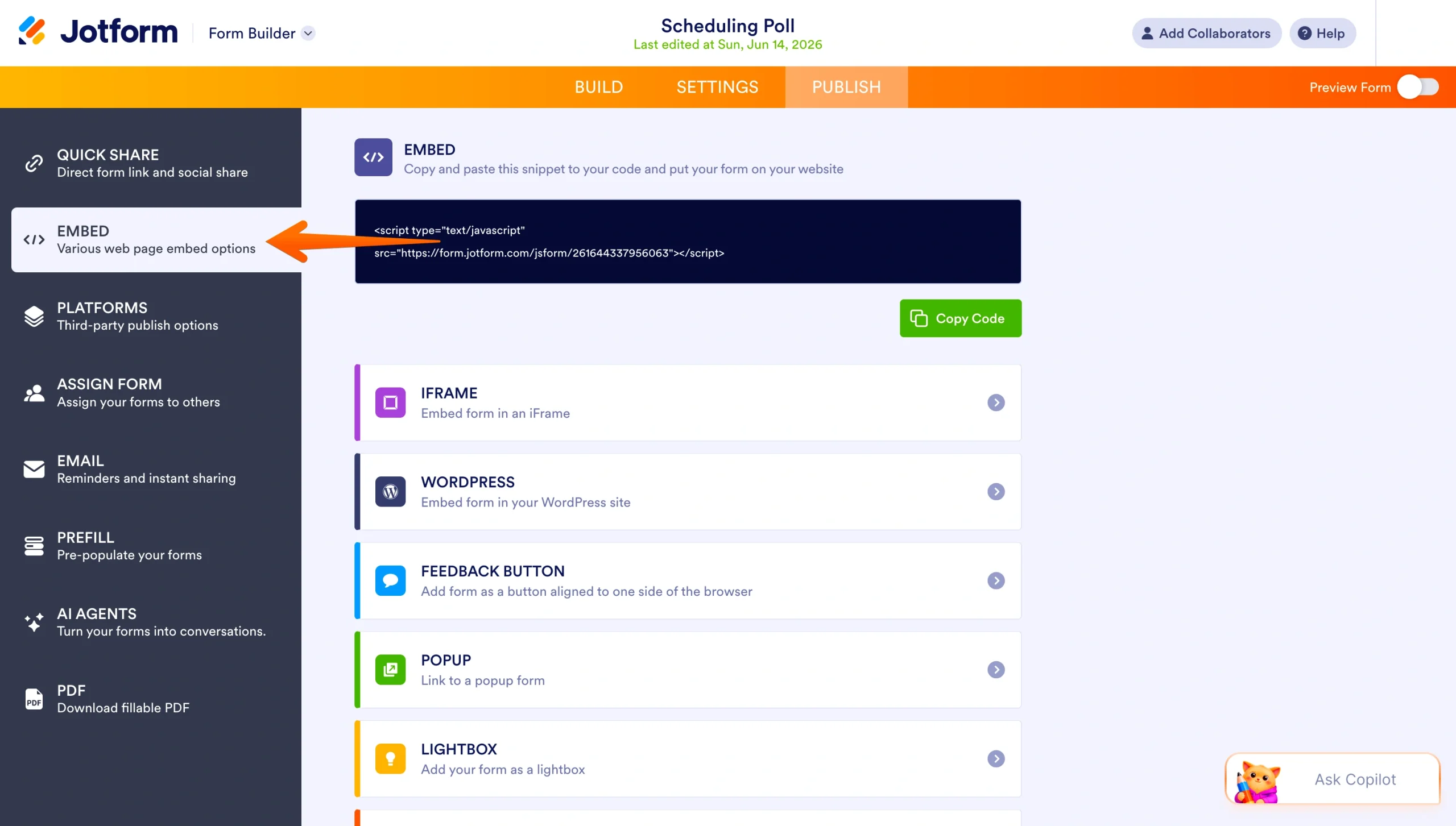
- Select the green Copy Code button.
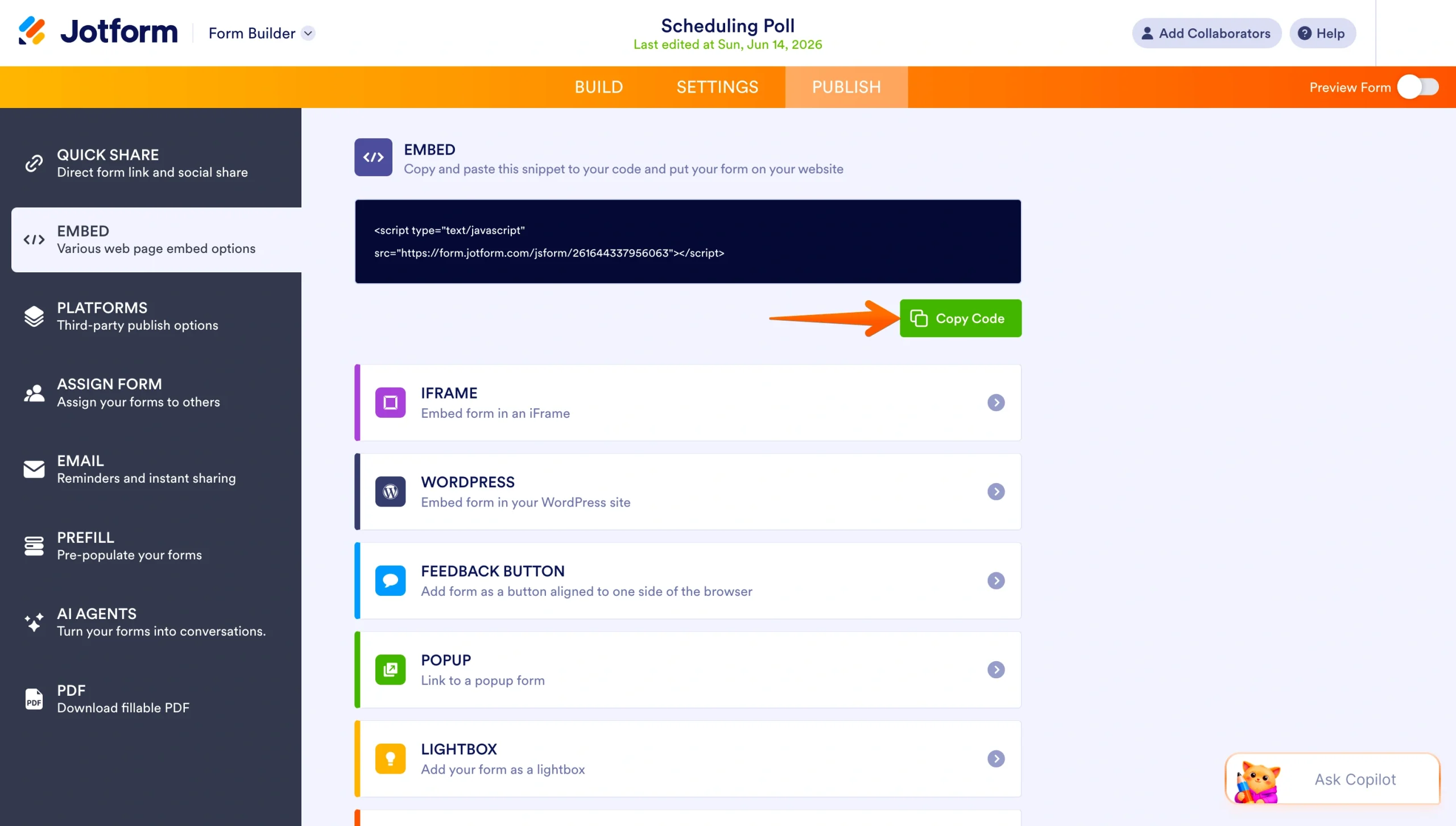
- Paste the copied code in the web page where you’d like your form to display.
How to embed a Jotform form into an email
While you can embed a Google Form directly into an email, Jotform doesn’t offer this same capability — but for good reason.
Not only does embedding forms in emails create data security risks, but embedding them directly also increases the likelihood that your form will be inaccessible or distorted once your audience receives it. Simply using a different device or web browser than your recipient(s) use can affect how the form will appear if embedded in an email.
For increased security and reliability, you can instead embed a Jotform form as a link within an email. Alternatively, you can email your form directly from the Jotform Form Builder (instead of copying and pasting a link and using your personal email to send it).
How to share a Jotform form with a link
Though embedding a Jotform form in the body of an email isn’t possible, you can easily create a link to your form to include in an email. With this method, you can still conveniently correspond with your email list without compromising security.
To start, here’s how to share a Jotform form with a link:
- Navigate to the Form Builder to select the form you’d like to share with a link.
- Once you’re happy with your form, click the Publish button at the top of the screen.
- Click Copy Link.
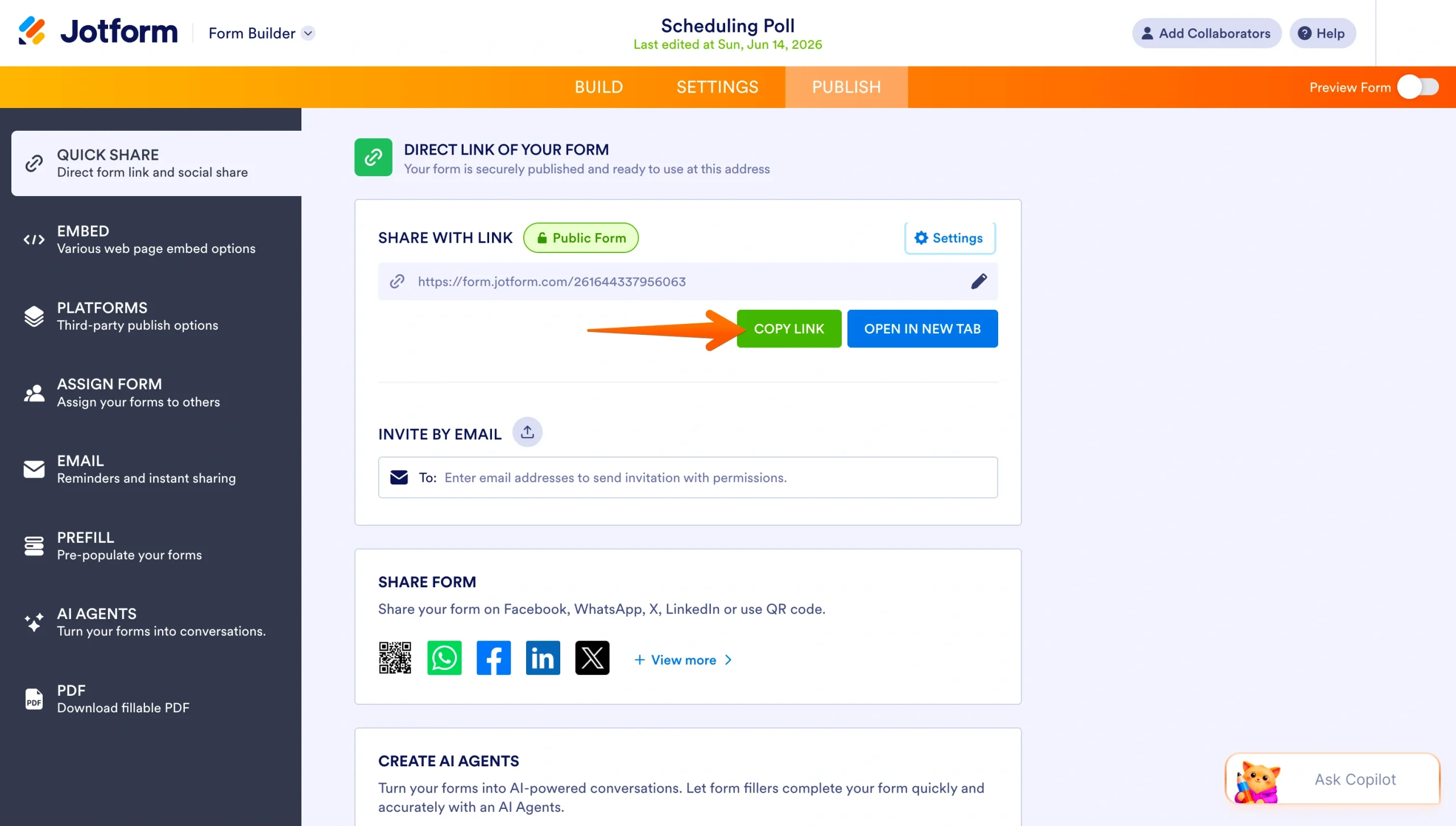
- Lastly, paste the copied link in a blog post, social media platform, email, etc.
If you don’t want to send your recipients a link to your form using your personal email, you can share the form with them via email directly from Jotform.
To email a form from Jotform, simply complete the first two steps mentioned above and then follow these steps:
- Select Email from the left sidebar.
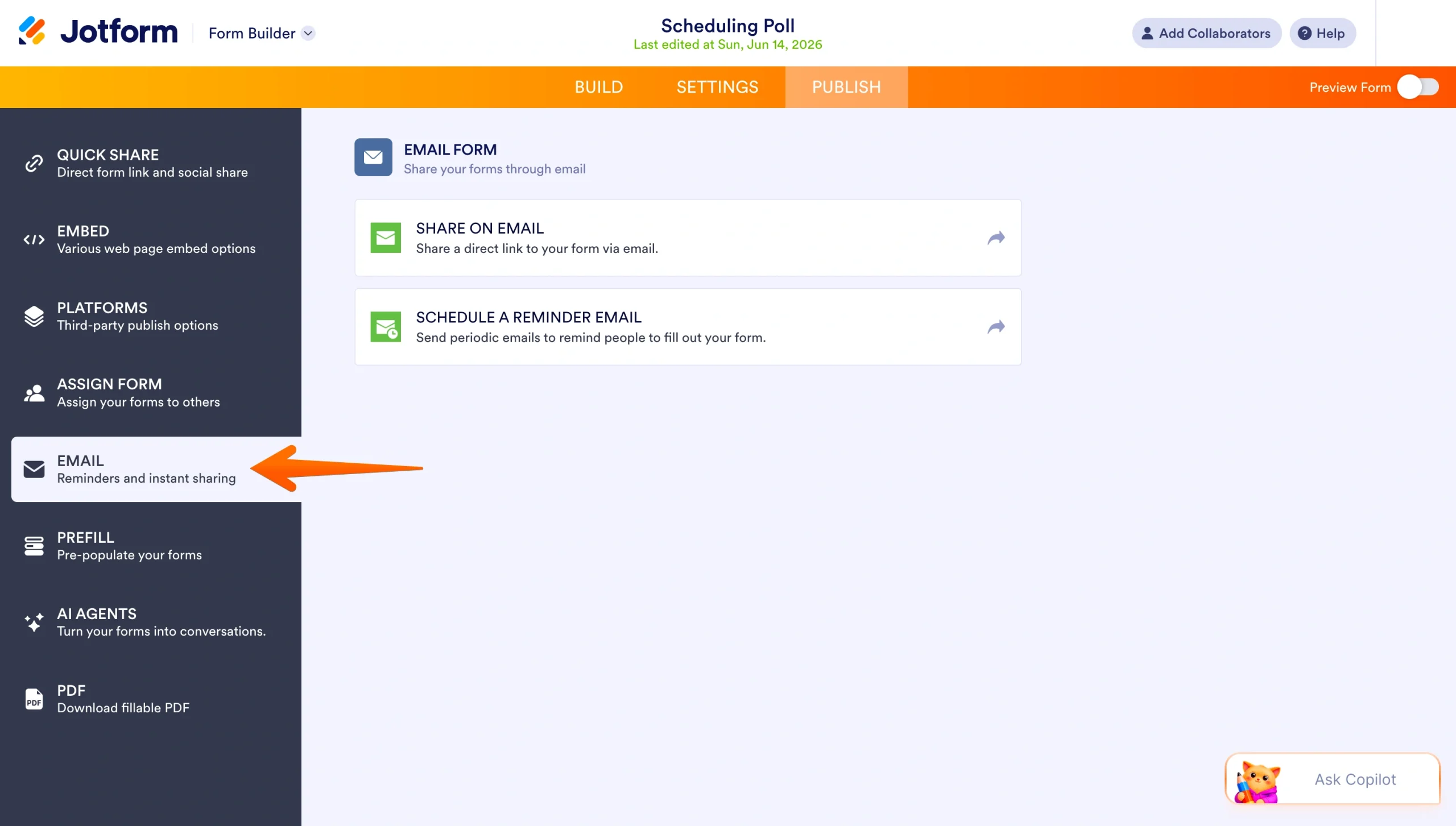
- Select Share On Email to send an email directly to your respondents (instead of copying and pasting a link into your personal email). This screen also lets you schedule reminder emails to recipients who haven’t yet completed the form or survey.
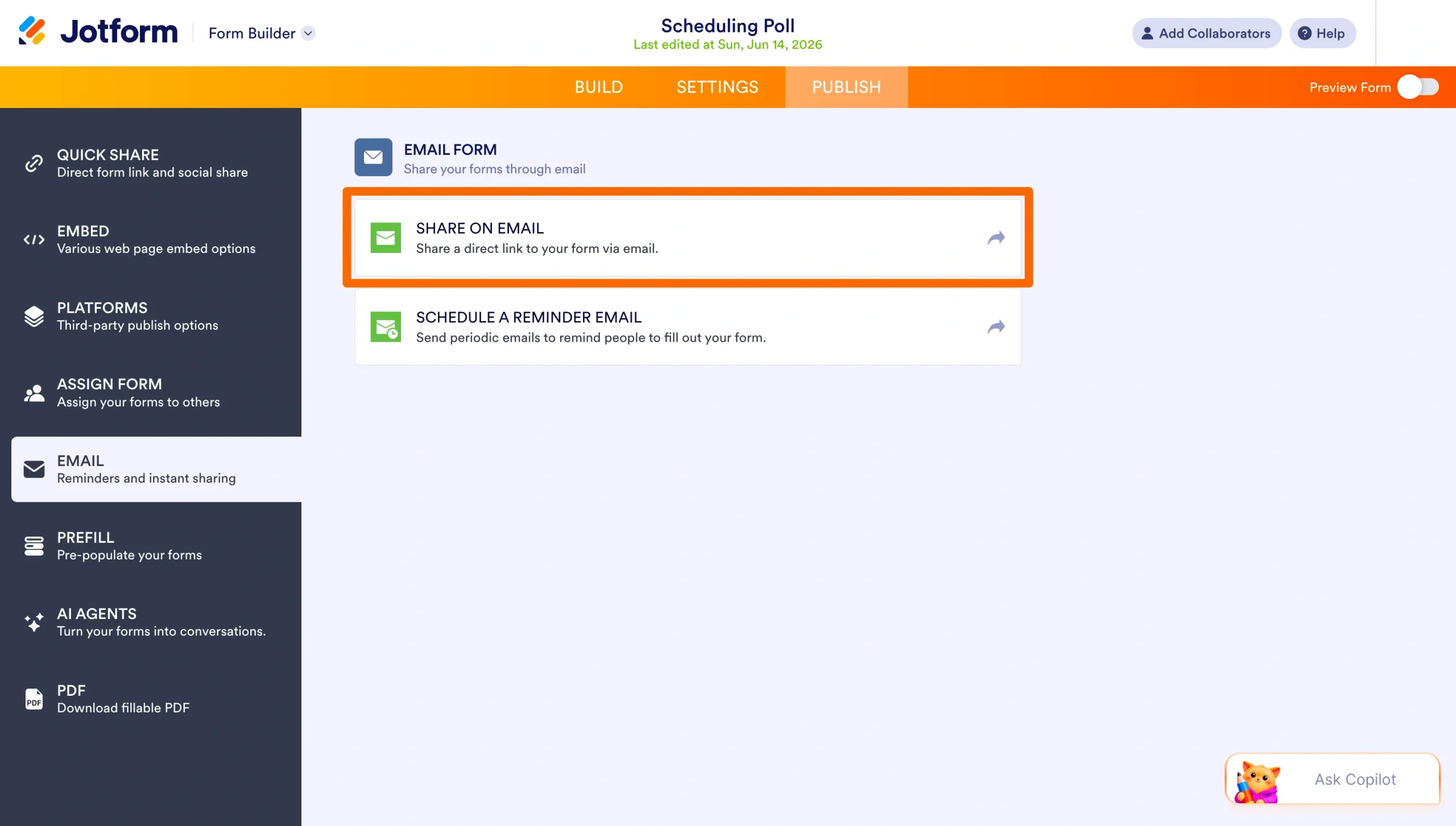
- Under the Email tab, type in the email’s subject line under Email Subject and the email’s message under Email Content.
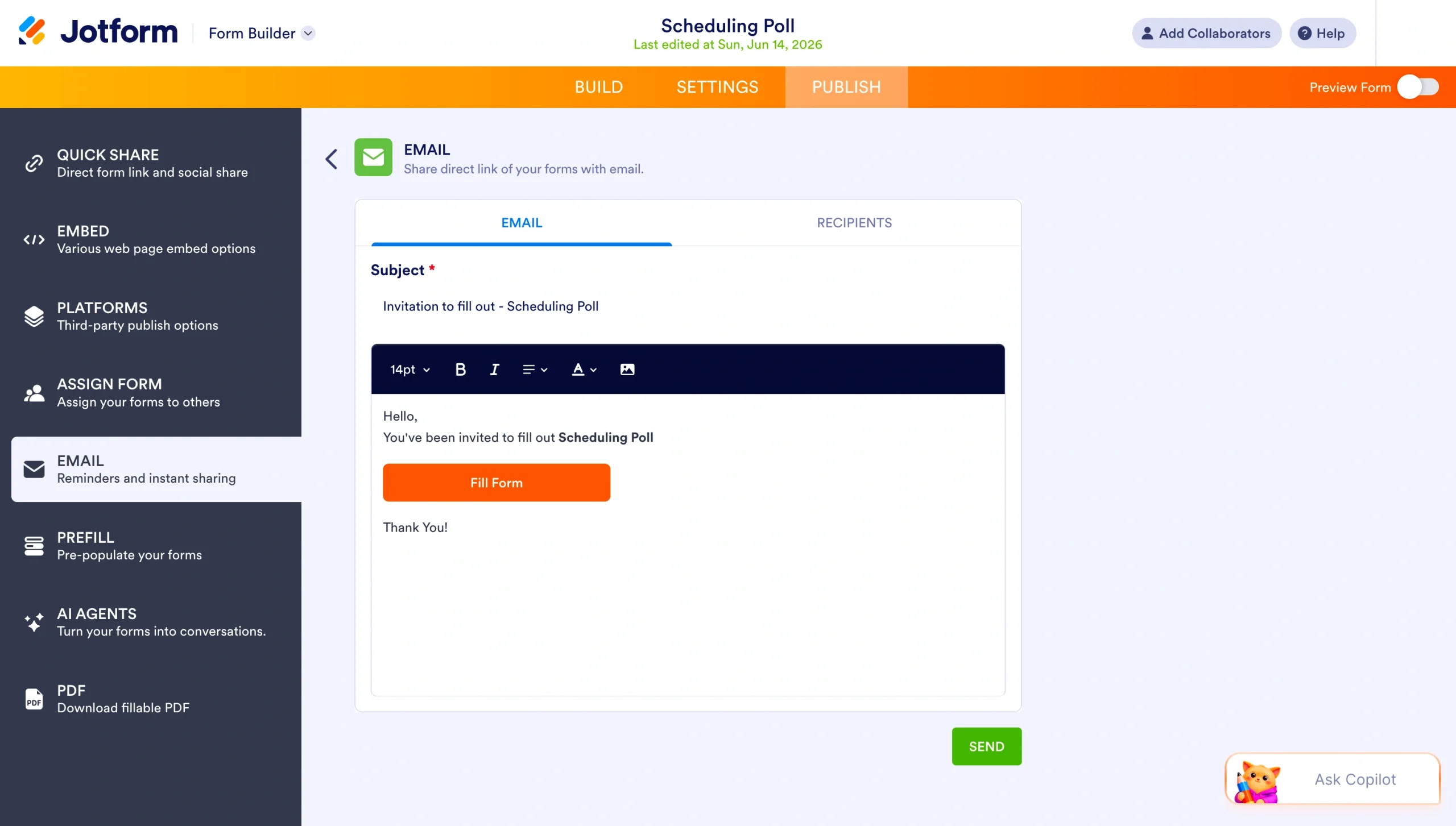
- Select the Recipients tab.
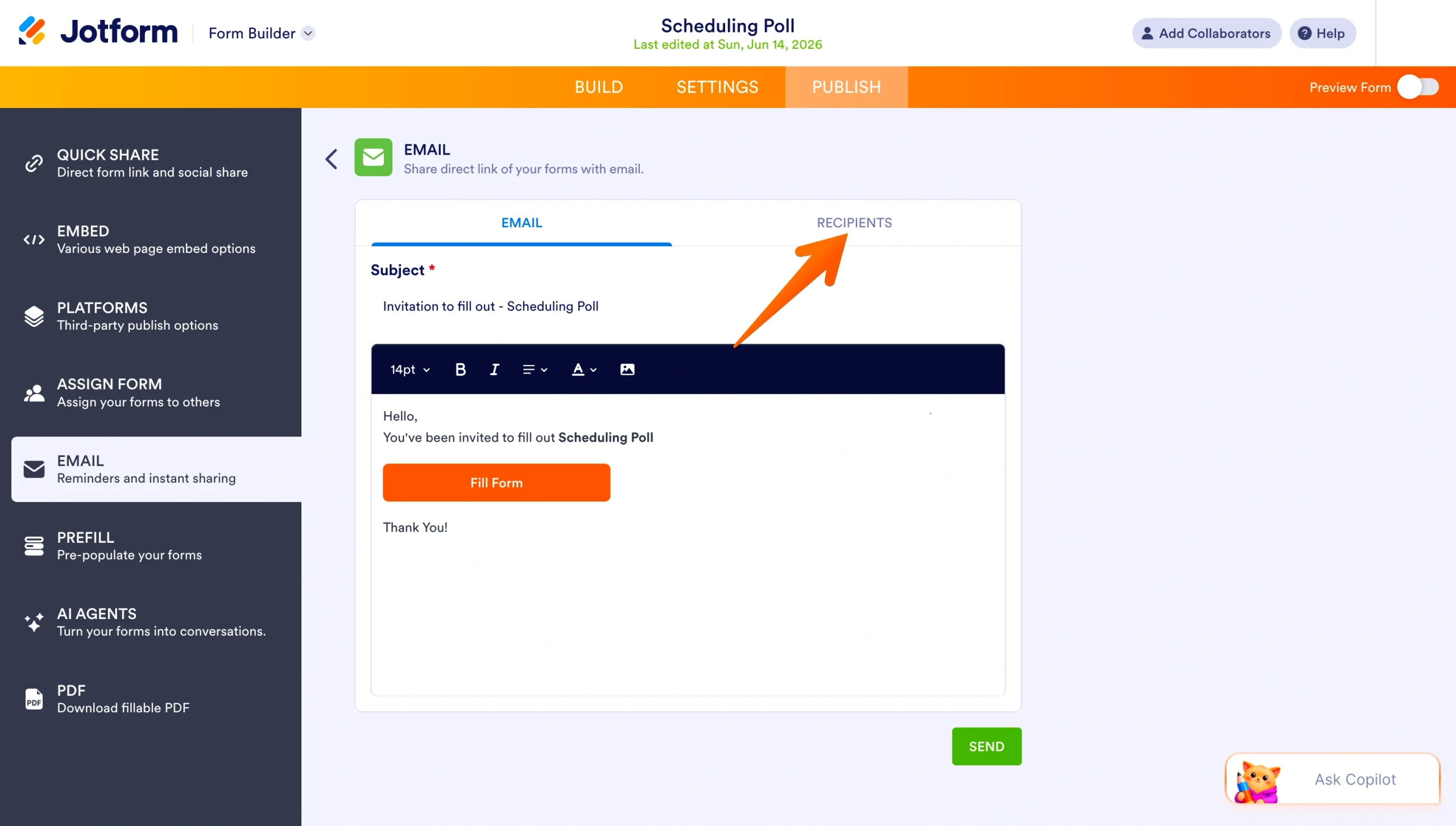
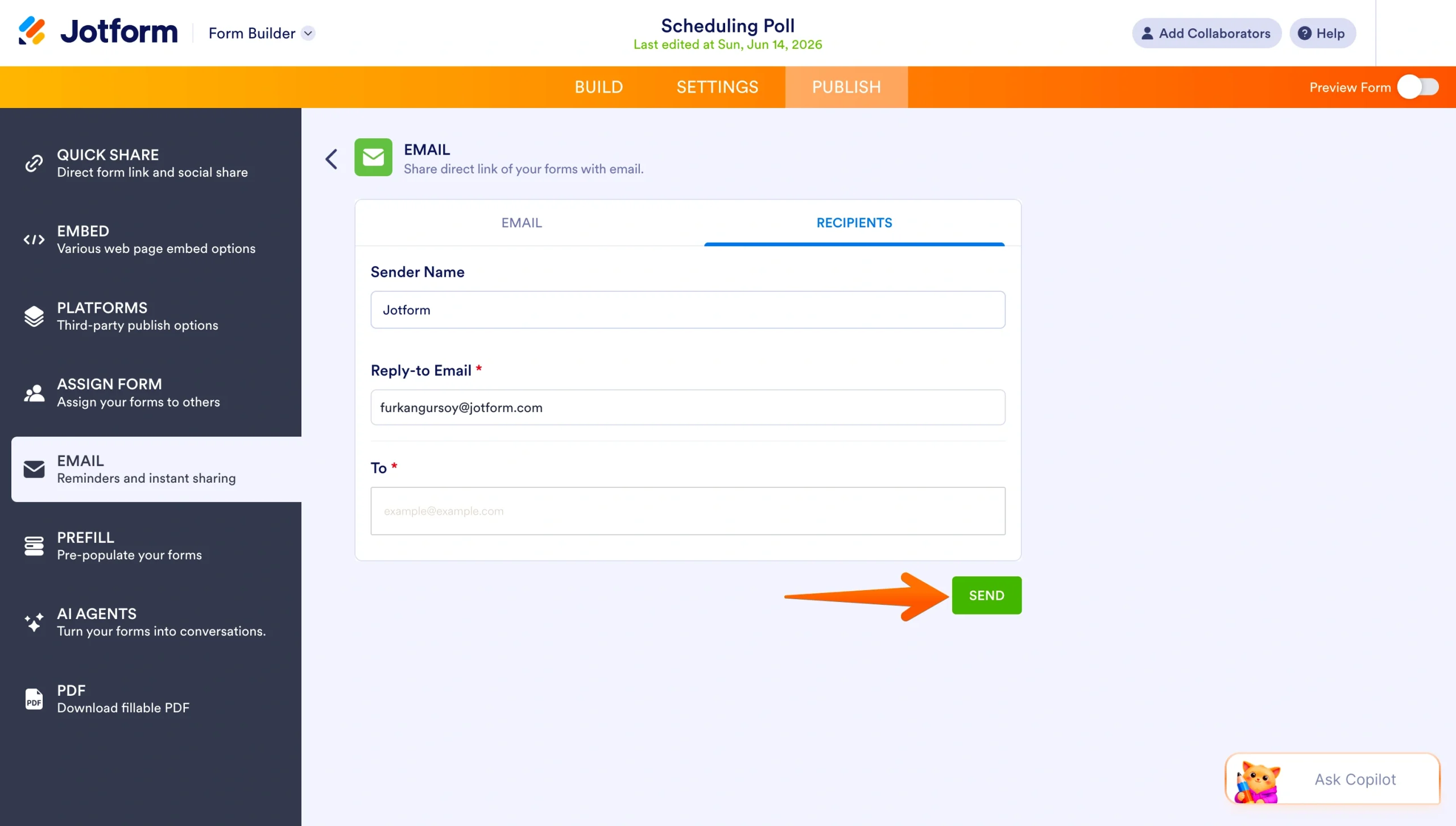
- Enter how you’d like your name to appear under Sender Name.
- Enter your email address under Reply-to Email.
- Enter your recipient’s email address under To.
- Finally, click the green Send button.
Pro Tip
Check out our step-by-step custom guides below for embedding a Google Form to different platforms:
- WordPress: How to Embed a Google Form in WordPress
- Wix: How to embed Google Forms in Wix
- Squarespace: How to embed a Google Form in Squarespace
- Shopify: How to add Google Forms to Shopify
- Weebly: How to add a a Google form to Weebly
- Canva: How to add a Google Form to a Canva website
You’re ready to build and share forms
That’s it! Congratulations! You’ve successfully learned how to embed both a Google Form and a Jotform form into a website, email, and link.
Now you’re equipped to create powerful surveys and quizzes — as well as share them with colleagues and customers — using two of the most popular online form builders. Whichever one you ultimately choose for your organization, you can trust your forms — and the data they collect — are in safe, capable hands.































































































Send Comment: