

You can embed a Google Form in WordPress by copying the HTML embed code from Google Forms and pasting it into a Custom HTML block on WordPress. You don’t need a plug-in if you’re paying for WordPress. If you’re using a free WordPress.com site, Google Forms embedding requires a paid plan upgrade.
There are other solutions. For example, Jotform embeds on free WordPress.com sites with no restrictions, and it offers more design control and features.
This guide walks through the current Google Forms embed flow step-by-step and covers what to check if you’re on WordPress. If you need a free and more flexible form solution that has your brand’s look and feel, I’ve shared more about Jotform, how it works, and how you can embed it easily onto any WordPress site.
Check your WordPress version before embedding
If your Google Form or external embed isn’t showing up, the culprit is usually your WordPress setup, not your code. Before troubleshooting, identify your platform:
- WordPress.com (Hosted): Embedding forms is locked behind paid plans (Personal, Premium, Business, etc.). If you are on the free tier, the platform will block the embed. You’ll need to upgrade or find an alternative form tool.
- WordPress.org (Self-Hosted): You have complete freedom. You can paste custom HTML or use plugins immediately with zero restrictions.
If an embed fails, don’t panic. Just double-check your WordPress version and plan tier first!
How to embed a Google Form in WordPress without a plug-in
If you’re on a paid WordPress plan, you can embed a Google Form in WordPress in a few minutes.
Here’s a simple step-by-step guide with images.
Step 1: Copy the embed code from Google Forms
- Open your form at forms.google.com.
- If you haven’t already, click Publish at the top right and follow the prompts to make the form accessible to respondents. Google now requires forms to be published before embedding them or filling them in.
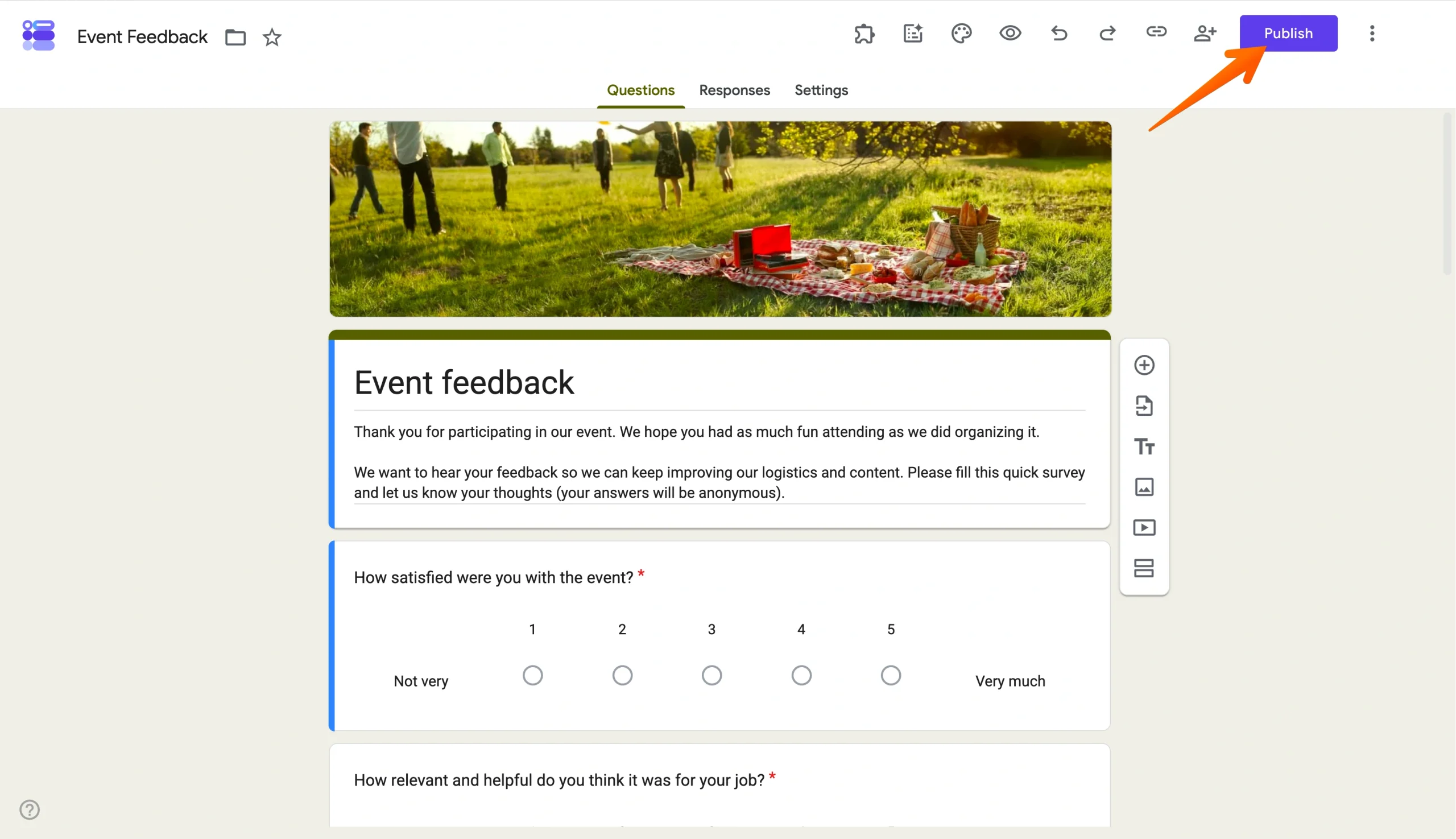
- Click the three-dot icon at the top right corner and select Embed HTML from the dropdown.
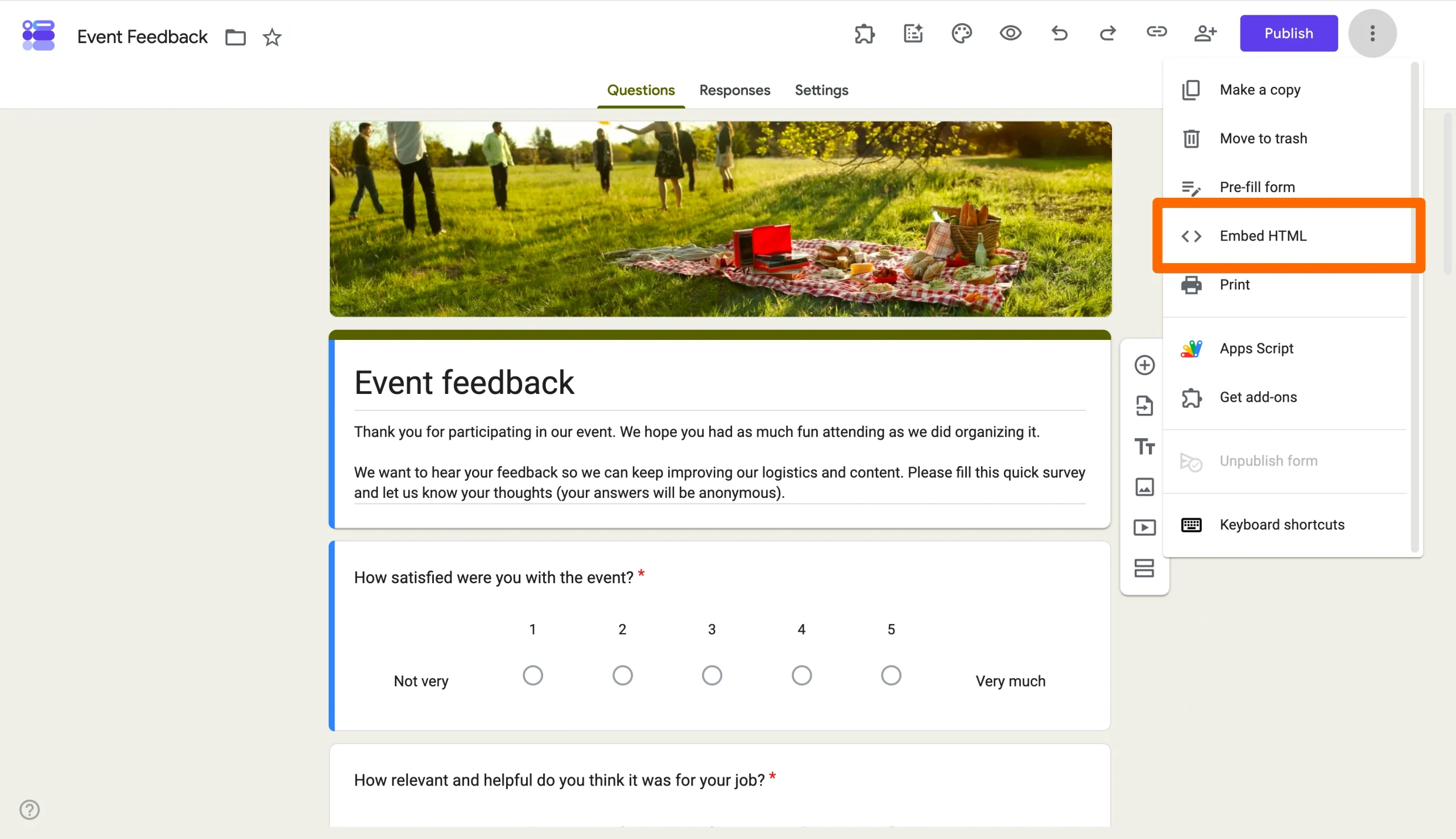
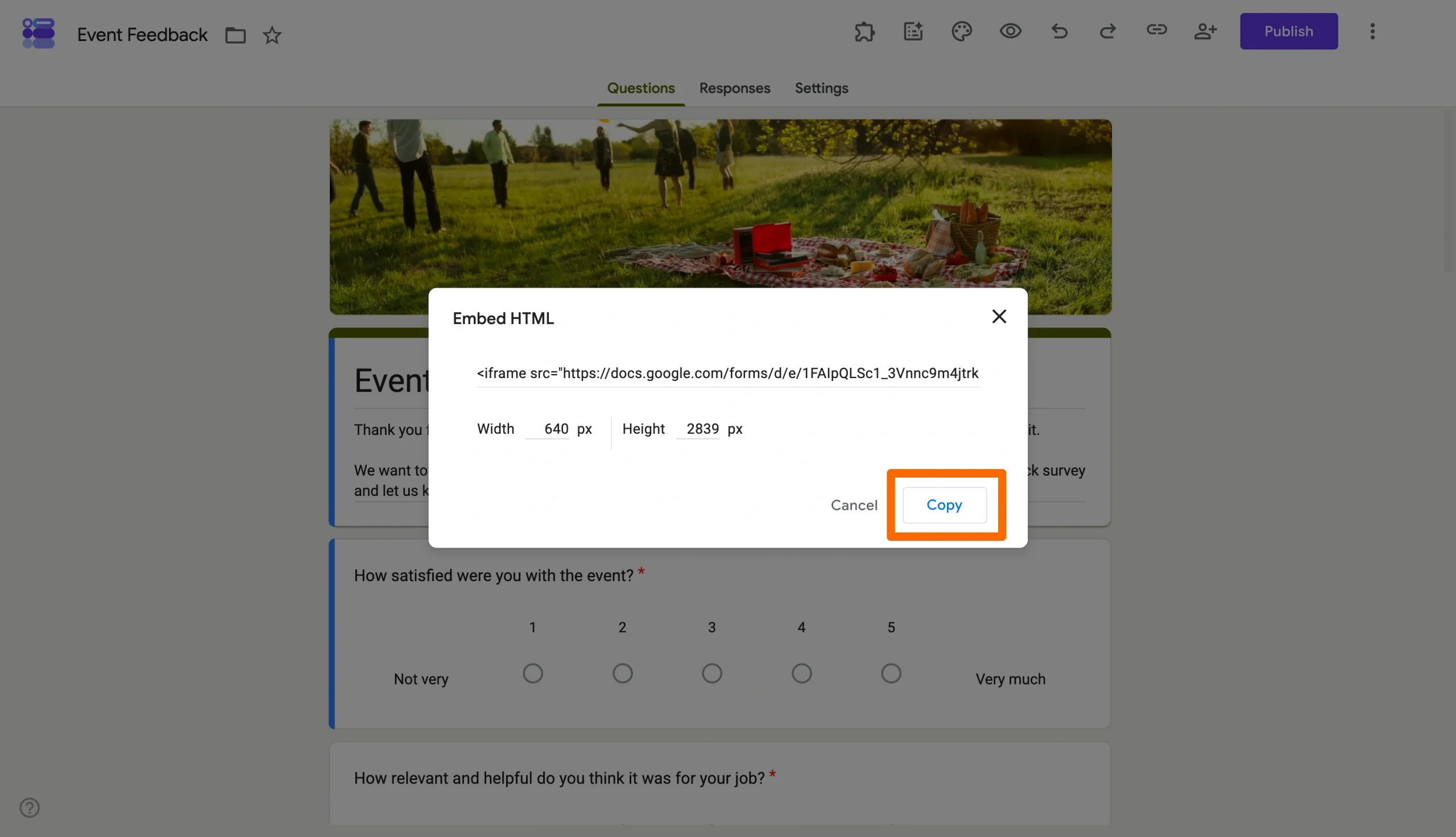
- Once you’ve clicked Embed HTML, you’ll see a popup like the one in the following images. In the popup, you can adjust the size of the embedded form by changing the width and height in pixels.
- Click Copy to copy the iFrame code to your clipboard.
Step 2: Add the embed code to your WordPress page or post
- Go to your WordPress website and open the page or post where you want the form to appear.
- Click the + icon for the block inserter and find or search for HTML, then add the block.
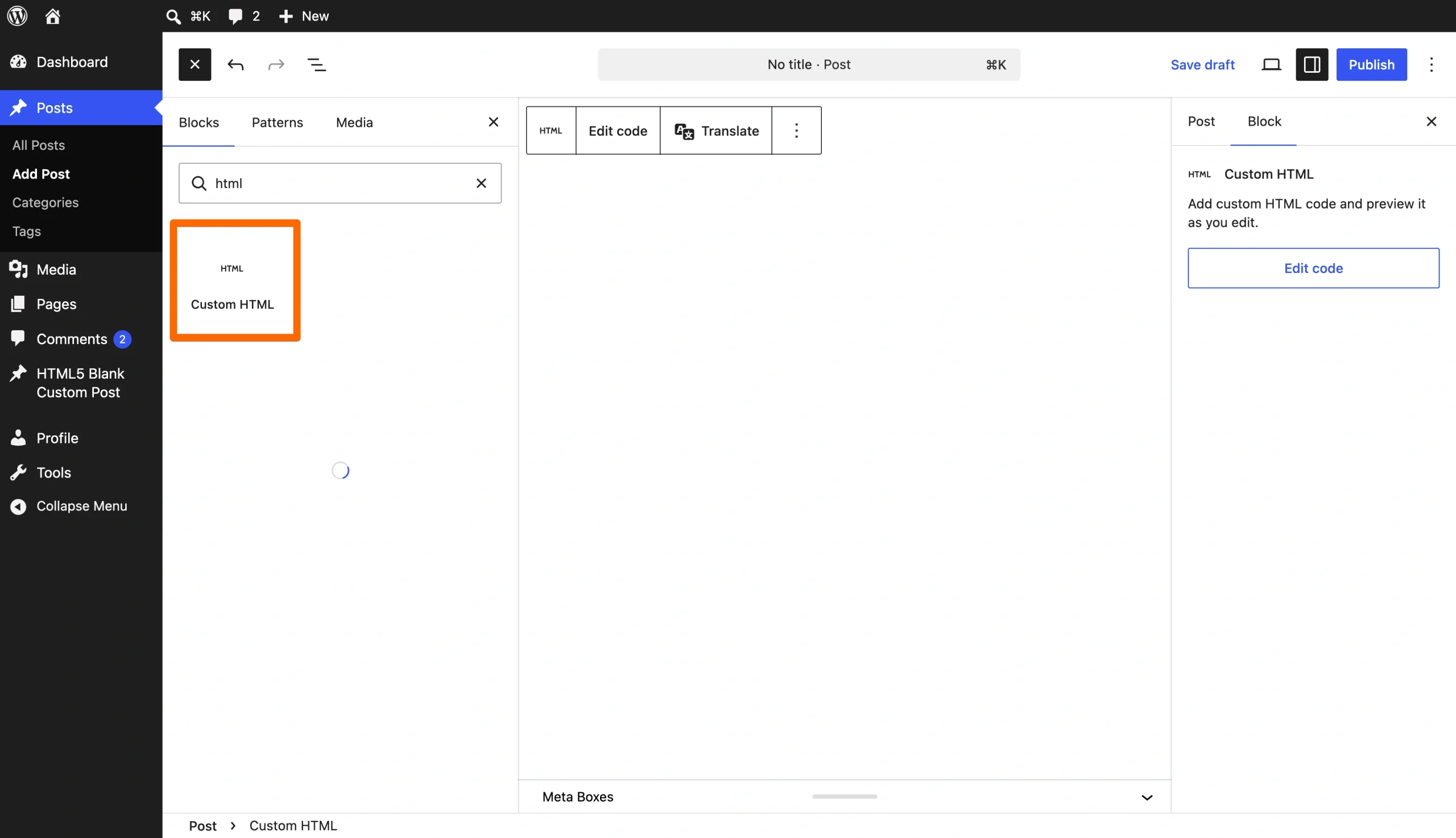
- Paste your embed code into the block that appears on the right-hand side.
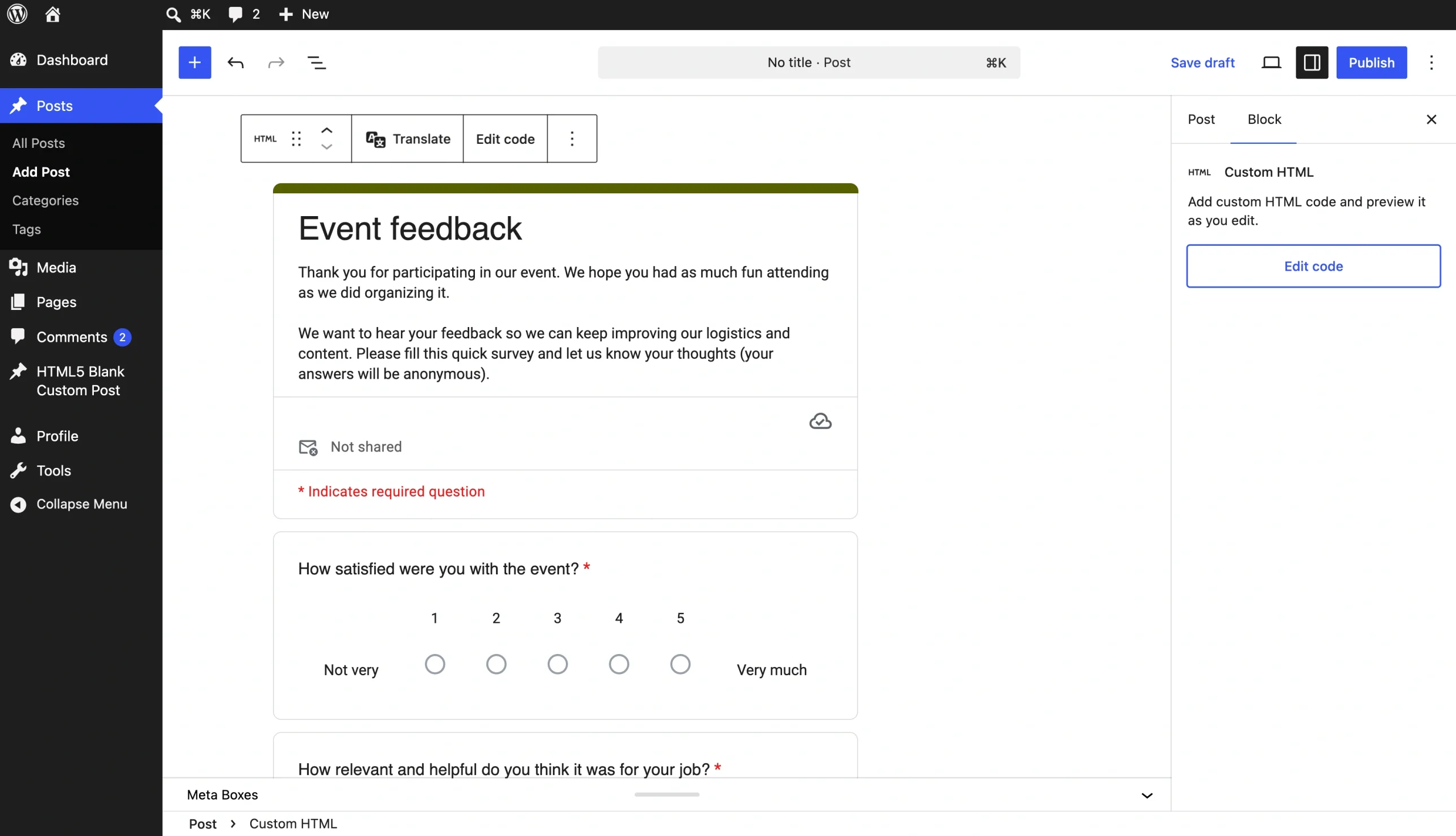
- Click Preview to see how the form looks before it goes live. Click Publish if you’re happy with it or Update to make changes..
Struggling to create a form in Google Forms? Read our free guides:
Step 3: Test the form after publishing
Once the page is live, take a few minutes to check it:
- Open the page on both desktop and mobile to confirm the form fits the layout and is usable from both devices.
- Run through the form on each device and submit a response. Then check that the response data is captured in Google Forms’ back end as expected.
Pro Tip
If your embed isn’t the right size for your WordPress site, you can adjust the code directly. Just look for width=”xxx” or height=”xxxx” and adjust the pixels accordingly.
Better WordPress forms start with Jotform
Google Forms gets the job done for simple data collection, but it has limitations when embedding in WordPress. Plus, Google forms are only customizable to a point. A Google form will always have the look and feel of Google’s product.
Jotform’s WordPress form solution is the best Google Forms alternative. It offers better WordPress embed options, and you can customize the form entirely. Your form will look and feel like your brand, not like Google.
Here are some benefits of Jotform:
- Better-looking forms: Jotform’s drag-and-drop form builder gives you full control over layout, fonts, colors, and styling. Your embedded form can match your site and brand exactly, rather than looking like it belongs somewhere else.
- More customization: Jotform offers multipage forms, hundreds of widgets, custom confirmation pages, and conditional logic that shows or hides fields based on a respondent’s previous answers. Google Forms doesn’t offer this level of flexibility.
- Payment collection built in: Jotform integrates directly with Stripe, PayPal, Square, and other payment processors so you can collect payments, donations, or booking fees through the same form.
- Two ways to embed in WordPress: You can embed a Jotform directly using the Custom HTML block, the same way you’d embed a Google Form. Or you can use the Jotform WordPress Embed Form plug-in, which lets you insert and manage forms without touching any code. From the Form Builder, go to Publish → Platforms → WordPress and copy the shortcode, then drop it into a shortcode block in the Gutenberg editor or paste it directly into the classic editor.
- Works on free WordPress.com sites: Unlike Google Forms, Jotform embeds on free WordPress.com sites without requiring a plan upgrade.
💡 Did you know?
You can quickly and easily migrate a Google Form to Jotform. If you’ve already created forms on Google Forms, you don’t have to manually move them to Jotform. Using Jotform’s migration, your complete forms, including logic and questions, will migrate seamlessly to Jotform. It takes less than a minute.
Use Google Forms for simple embeds, Jotform for better WordPress form workflows
Google Forms is a reasonable choice if you need a simple, one-time form embedded on a page and aren’t too concerned about how it looks or what it can do. The embed process is straightforward if you’re paying for WordPress.
If you want a form that feels like part of your site, or if you need advanced functionality, such as payments, advanced logic, or a more manageable workflow, Jotform is the solution. It’s free to try, and you can embed a form on any WordPress page in minutes.
FAQ about embedding Google Forms in WordPress
Yes, you can embed a Google Form in WordPress without a plug-in if you’re paying to use WordPress. The standard method uses Google’s built-in embed code and WordPress’s Custom HTML block. A plug-in is necessary only if you want additional functionality, such as managing multiple forms from within WordPress.
The most common causes are sizing, access, or publishing. If the form is cut off or too narrow, adjust the width and height values in the iFrame code. If the form isn’t showing at all, check that it has been published in Google Forms; unpublished forms won’t load for visitors even if the embed code is in place. If you’re on a free WordPress.com site, the platform’s plan restrictions may also prevent the embed from rendering.
Yes, updating a Google Form updates the embedded version on a WordPress site. The embed code points to the live form hosted on Google’s servers, so any changes you make in Google Forms are reflected automatically on your WordPress page without needing to update the embed code.
This article is for WordPress website owners, content managers, small business teams, and anyone who wants to embed forms on a WordPress site while choosing the easiest and most flexible option between Google Forms and Jotform.




































































































Send Comment: