With Jotform Enterprise, you can strengthen your account security by enabling Two-Factor Authentication (2FA) at the server level. Once it’s turned on, users in your Enterprise account can choose to enable 2FA for their individual accounts, adding an extra layer of protection beyond just a password. Instead of relying on a single login step, users will be asked to enter a verification code from an authenticator app when signing in.
This added security helps protect your organization’s data and reduces the risk of unauthorized access, making it especially useful for teams that handle sensitive information or want to encourage stronger security practices across all users. Whether you’re an admin managing security settings for your organization or a user looking for extra peace of mind, enabling 2FA is a simple and effective way to keep your accounts better protected.
Enabling Two-Factor Authentication (2FA) in Admin Console Dashboard
While logged in to your Admin account, you can enable 2FA login for users under your server in a few quick steps. Here’s how to do it:
- On the top-right side of your Workspace page, click on your Profile Picture/Avatar.
- Then, in the menu that opens, click on Admin Console.

- Next, in the menu on the left side of the Admin Console Dashboard, click on Security.

- Now, under Security & Authentication, on the right side of Two-Factor Authentication (2FA), toggle it on.

That’s it. Your users can now enable two-factor authentication (2FA) for their accounts through their Account Settings, adding an extra layer of security when signing in to your server.
Requiring Two-Factor Authentication (2FA) for Enterprise Users
Once you’ve enabled 2FA login for enterprise users, you can make it mandatory for all users under your server in just a few steps. Here’s how to do it:
- While you’re in the Security tab of the Admin Console Dashboard, under the Two-Factor Authentication (2FA) section, toggle on Enforce Two-Factor Authentication For All Users.

- Next, in the Confirmation window that comes up, you can put a check in the box next to Notify All Users by Email to Configure Their 2FA Settings if you want to notify users under your server about the change and provide information about 2FA and how they can set it up.
- Then, click on Yes, Enforce 2FA.
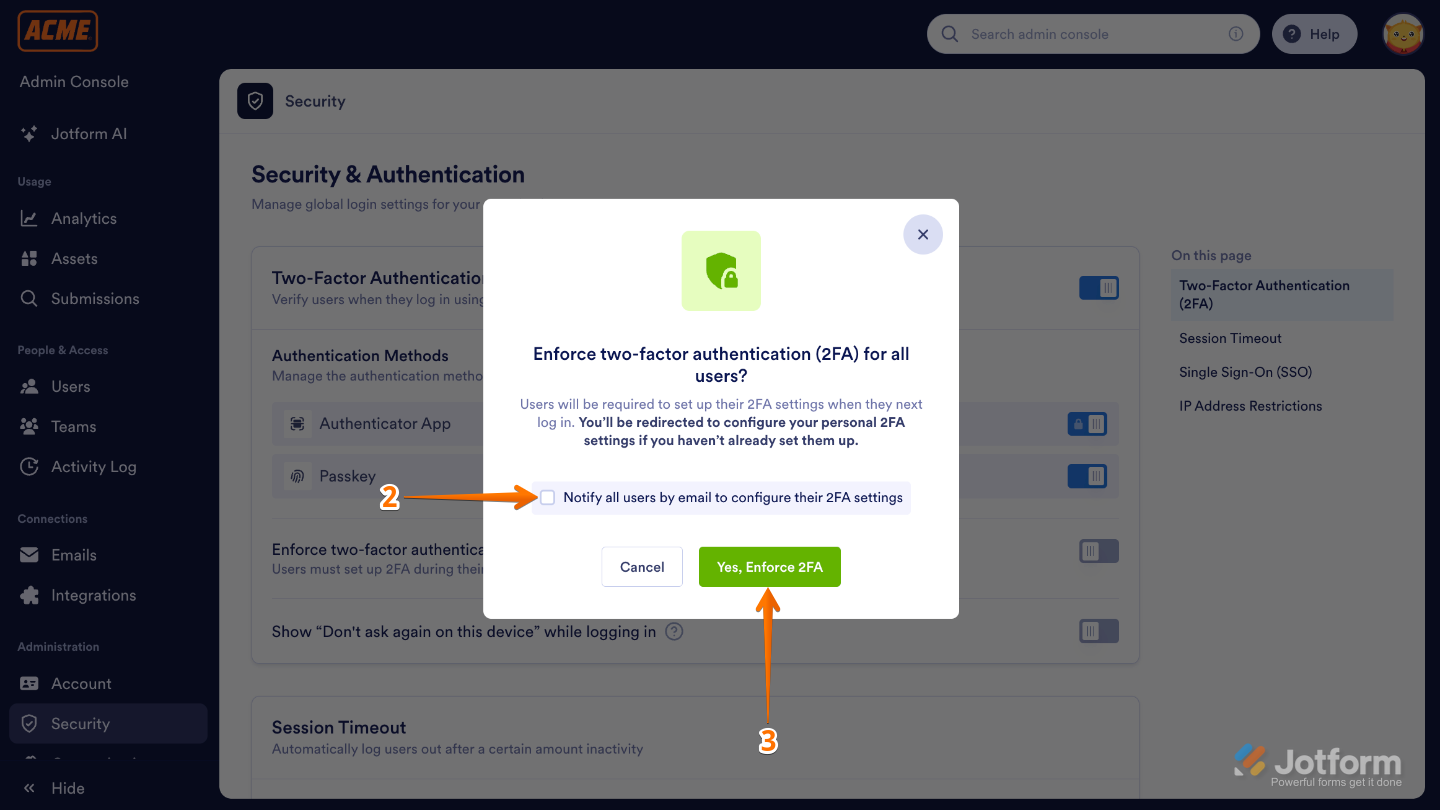
That’s it. If you haven’t set up 2FA yet for your admin account, you’ll be redirected to the configuration page immediately after requiring it, and you’ll need to complete the setup before accessing your account again. Users under your Enterprise server will also be required to configure and set up their 2FA settings the next time they log in.
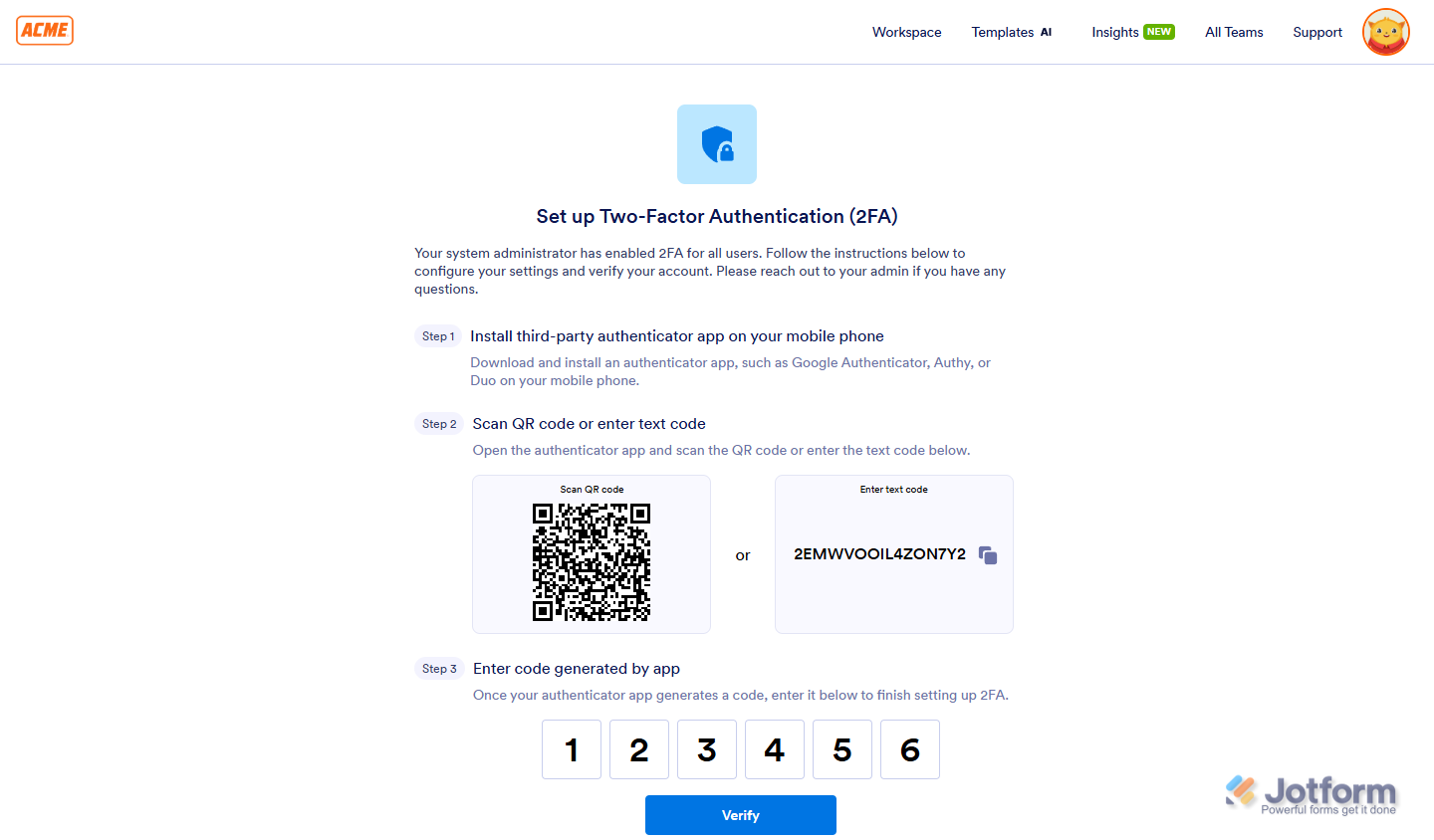
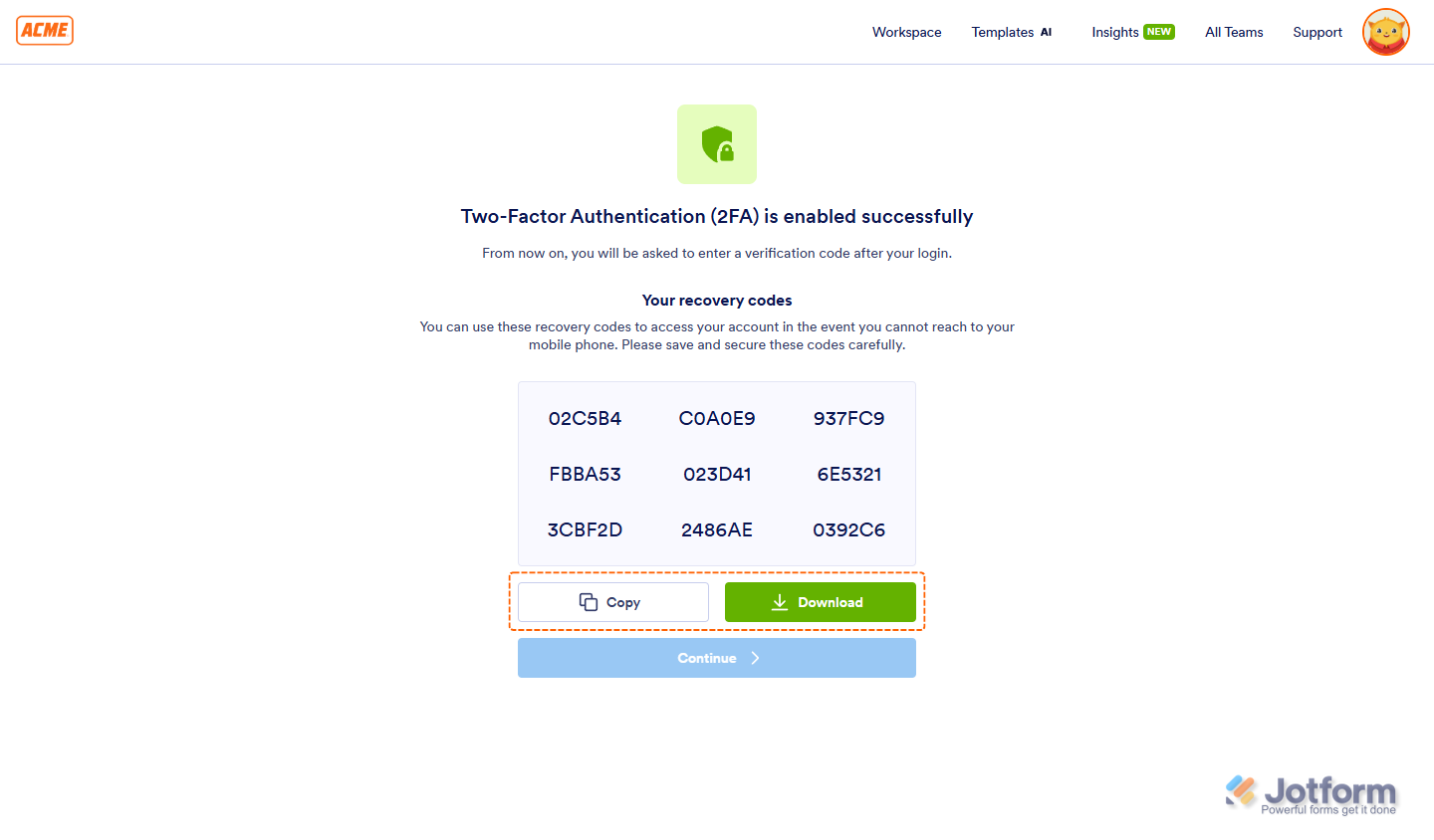
After successfully setting up 2FA, users will be prompted to copy or download their Recovery Codes to continue. These codes are important—you’ll need them if you ever lose access to your authenticator app and still want to sign in to your Enterprise account. So be sure to save them somewhere safe and accessible.
If you’d like to disable the requirement for all users to set up 2FA, a confirmation window will appear. Simply click Yes, make 2FA optional to proceed and allow users to decide whether they want to enable 2FA on their accounts.

Enabling Two-Factor Authentication (2FA) in Your Account Settings
Once Two-Factor Authentication (2FA) has been enabled in the Admin Console, users can set up 2FA for their Enterprise accounts using an authenticator app in just a few simple steps. Here’s a quick how-to:
- On the top-right side of your Workspace page, click on your Profile Picture/Avatar.
- Then, in the menu that opens, click on Settings.

- Next, in the menu on the left side of the page, click on Security.

- Now, under Secure Your Account, toggle on Two-Factor Authentication (2FA).
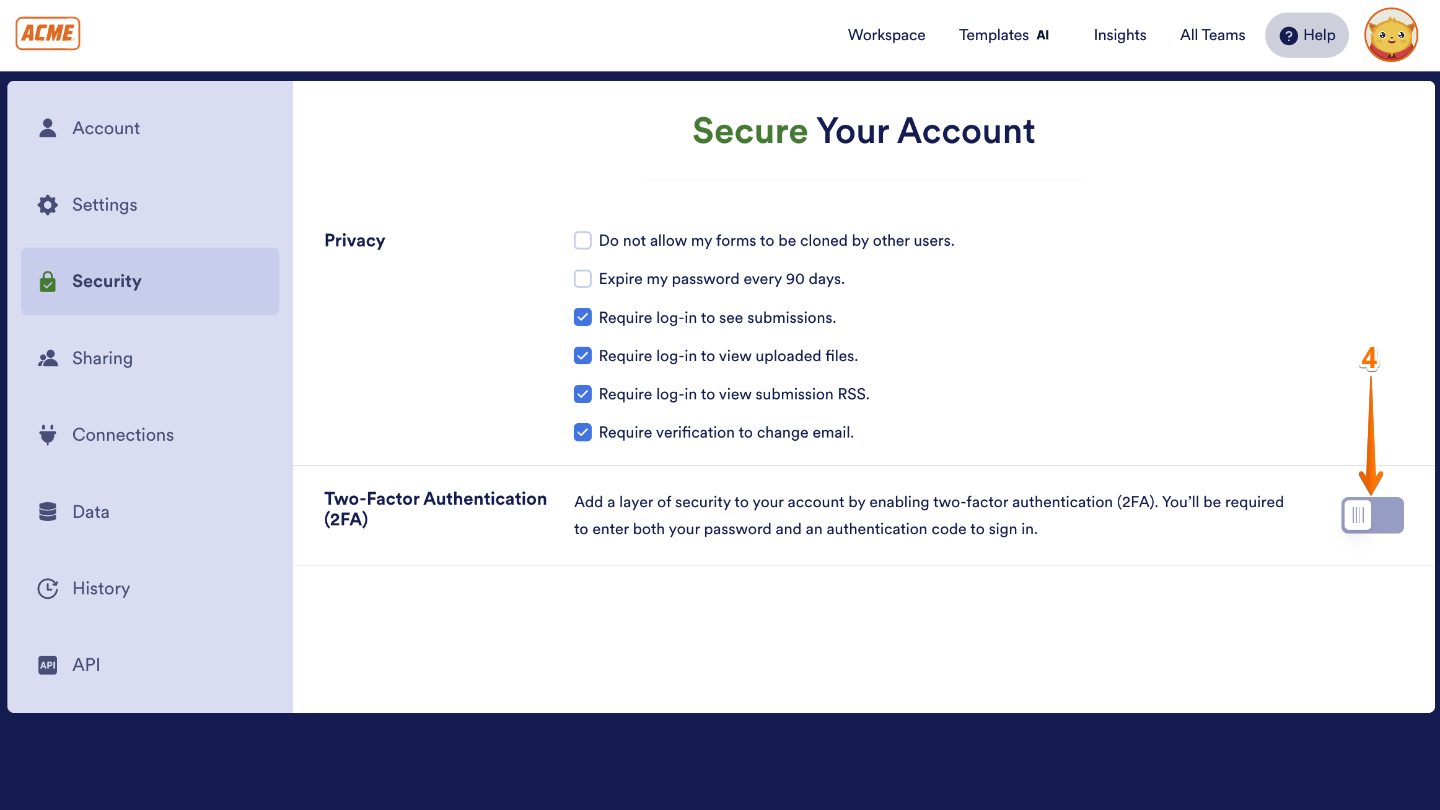
If Single Sign-On (SSO) is disabled for your organization, you’ll first need to verify your account with your password in the “Enable Two-Factor Authentication (2FA)” window to proceed.

- Then, in the Configure the Authenticator App window, scan the QR code or enter the Setup Key in your authenticator app.
- After that, enter the generated code in the boxes, and then click on Enable 2FA.

- In the confirmation window, Copy or Download your recovery codes. You’ll need them if you lose access to your authenticator app, so keep them somewhere safe and easy to find.

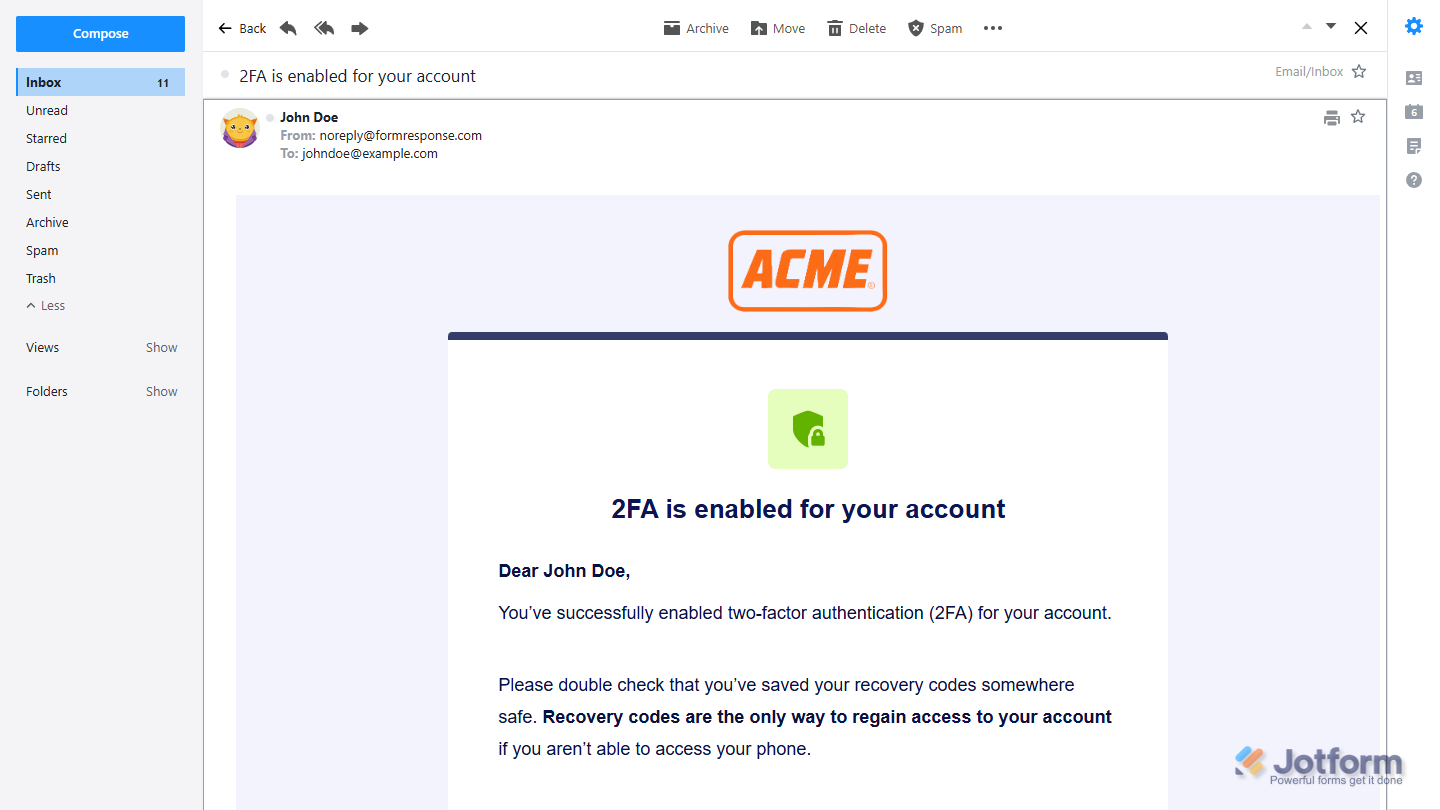
That’s it. You’ve successfully enabled 2FA and added an extra layer of security to your Enterprise account. You’ll also get a confirmation email at the address linked to your account to let you know it’s turned on.
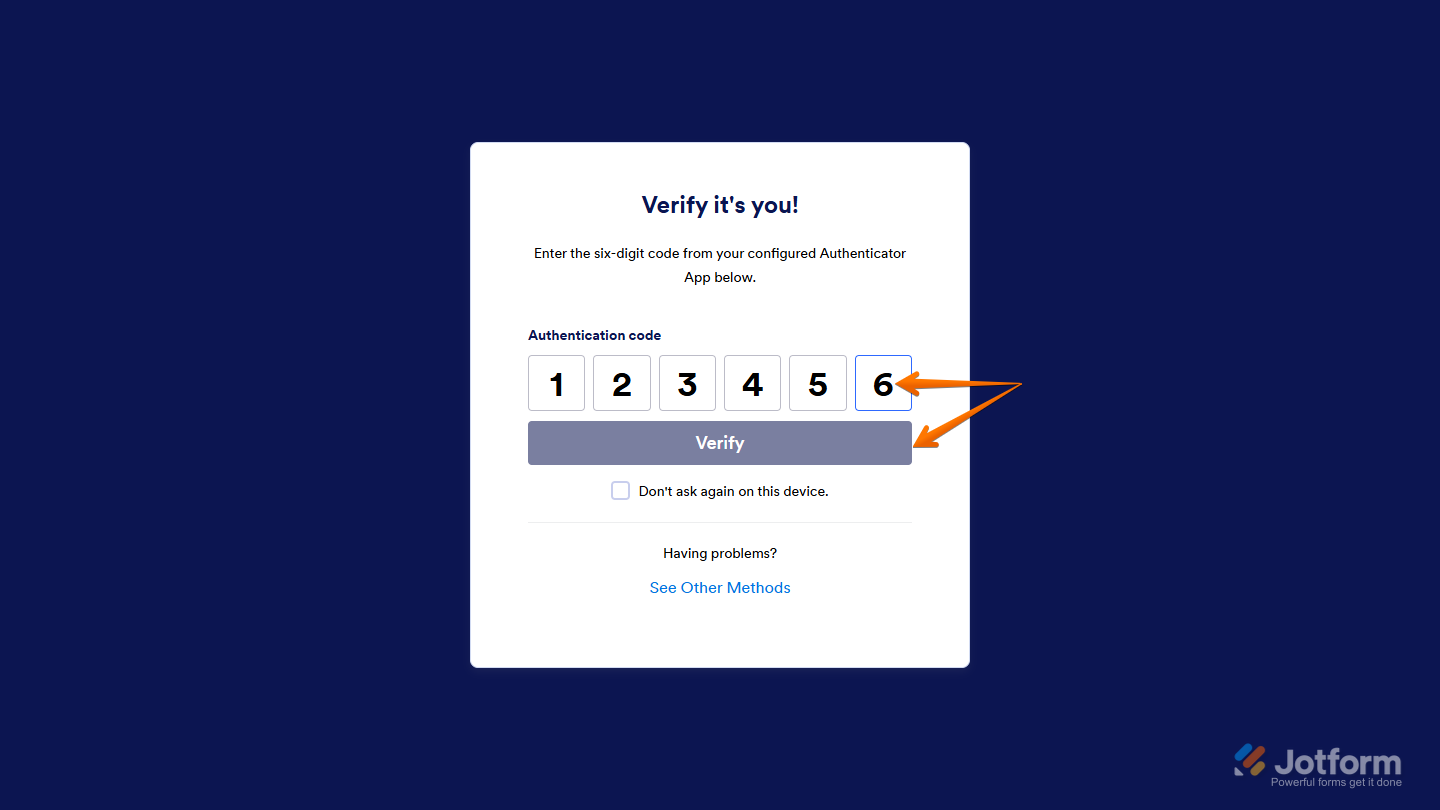
From now on, every time you log in to your Enterprise account, you’ll enter a verification code from your authenticator app after your password.

Send Comment:
8 Comments:
June 18, 2026
I was looking for a clear explanation of how to set up 2FA in Jotform Enterprise, and this guide covers everything step by step. The screenshots and instructions make the process easy to follow, especially for admins who need to enforce security across their organization. I also appreciate the reminder about saving recovery codes—it's a small detail that can save a lot of trouble later. With security threats becoming more common, enabling 2FA is definitely a smart move for any team handling important data. I regularly look for helpful online resources and guides.
March 18, 2026
o enable Two-Factor Authentication (2FA) in Jotform Enterprise, a server administrator must log into their Admin account, access the Admin Console via the user avatar, and toggle the 2FA option within the Settings menu. This security measure significantly reduces the risk of unauthorized access by requiring a second form of identification, providing a layer of protection as reliable as a clear s in morse code signal. Implementing this across your server ensures that every user follows a standardized protocol, much like the consistent dits and dahs used in professional telegraphy.
February 19, 2026
This guide is super clear and easy to follow! I really liked how you broke down the steps for enabling 2FA on Jotform Enterprise Server for both admins and users it makes the whole process feel simple. The part about setting up the QR code and saving backup codes was especially helpful. And you are absolutely right 2FA is so important when it comes to keeping websites safe from hackers. Really well done!
December 5, 2025
Your guide is exceptionally clear and well-organized! The way you explained each step for enabling 2FA on Jotform Enterprise Server—covering both admin and user setup—is truly impressive. You also highlighted the QR setup and backup codes perfectly. And mentioning the importance of the two-factor code is great because 2FA plays a critical role in protecting a website from hackers. Excellent work!
June 8, 2025
Enabling 2FA in Jotform Enterprise is a crucial move to strengthen account and server security. The instructions are clear, and it’s great that both server-wide enforcement and individual setup are covered. Also, emphasizing the use of recovery codes is a smart reminder many overlook. Well done!
June 5, 2025
Exactly what I needed! You just saved me several hours. Thanks!
September 3, 2023
Is 2FA only available to enterprise users?
July 27, 2023
This is very helpful and great work